> ## Documentation Index
> Fetch the complete documentation index at: https://stackone-hub-mintlify-faq-auth-1778741451.mintlify.site/llms.txt
> Use this file to discover all available pages before exploring further.

# Workable Application Custom Fields

> To create and view application custom fields in Workable, follow these steps

<Warning>
  This guidance assumes that you have admin privileges for your Workable account.
</Warning>

## Create a Workable Application Custom Field
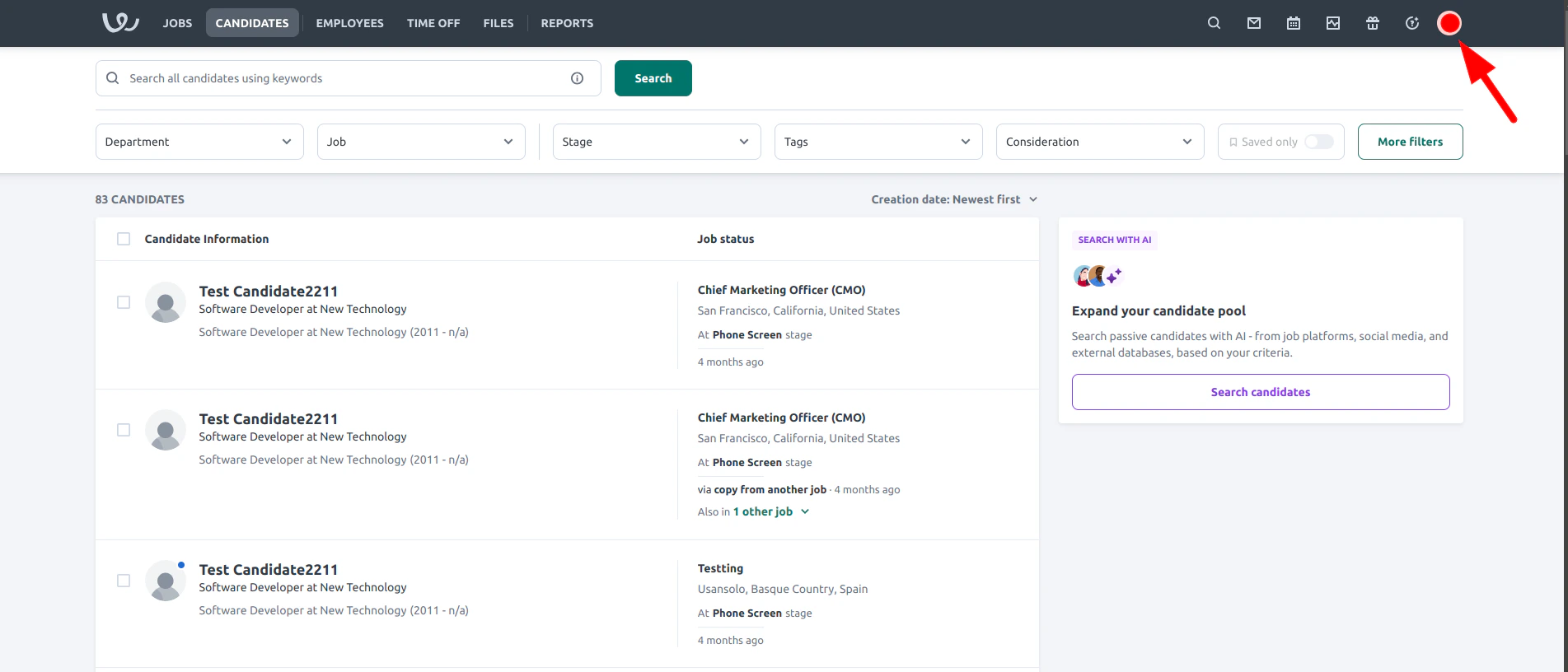
<Steps>
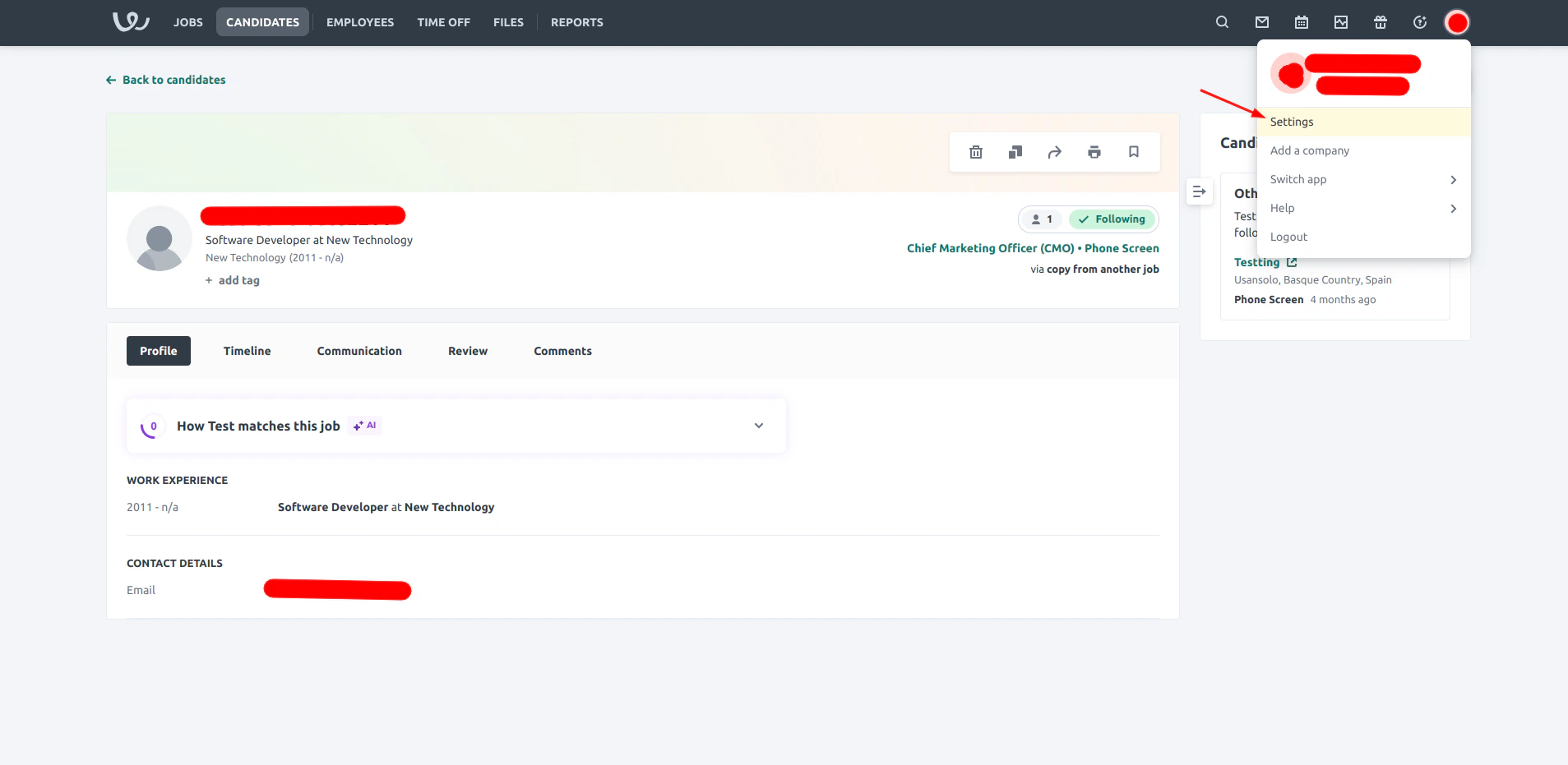
  <Step title="Click on your profile icon">
    <Frame>
      <img className="rounded-md" style={{ margin:"0 auto",border:"1px solid #efefef" }} alt="Click on the profile icon" src="https://mintcdn.com/stackone-hub-mintlify-faq-auth-1778741451/LT-A7QDyKh_KyNeP/images/workable/custom-field/custom-field-01.png?fit=max&auto=format&n=LT-A7QDyKh_KyNeP&q=85&s=d556938c529a6eb271f09a2e51c2afd1" width="1903" height="816" data-path="images/workable/custom-field/custom-field-01.png" />
    </Frame>
  </Step>

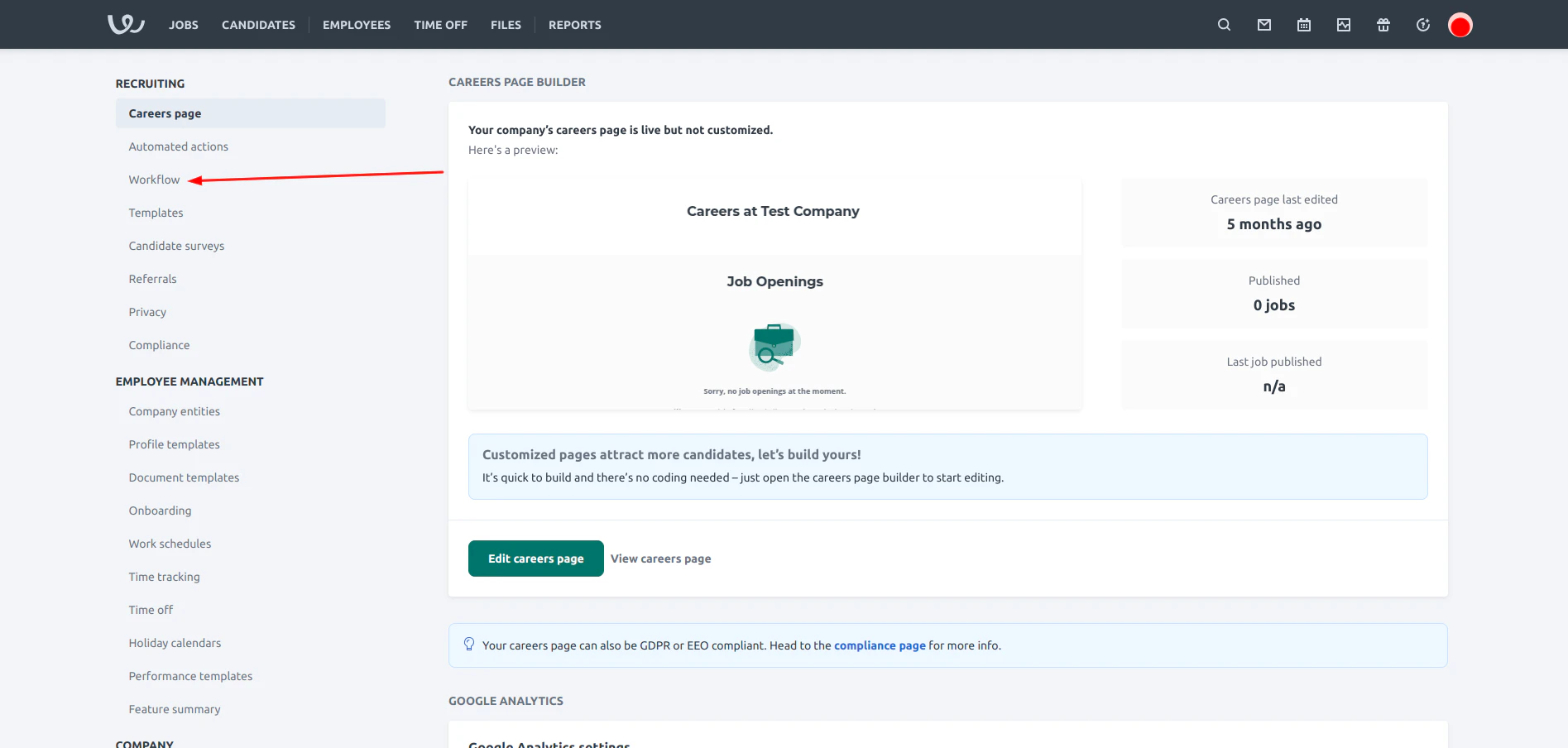
  <Step title="Navigate to Settings">
    <Frame>
      <img className="rounded-md" style={{ margin:"0 auto",border:"1px solid #efefef" }} alt="Navigate to settings" src="https://mintcdn.com/stackone-hub-mintlify-faq-auth-1778741451/LT-A7QDyKh_KyNeP/images/workable/custom-field/custom-field-02.png?fit=max&auto=format&n=LT-A7QDyKh_KyNeP&q=85&s=f6d3e6d0363b86c9e1011cad022d3821" width="1907" height="931" data-path="images/workable/custom-field/custom-field-02.png" />
    </Frame>
  </Step>

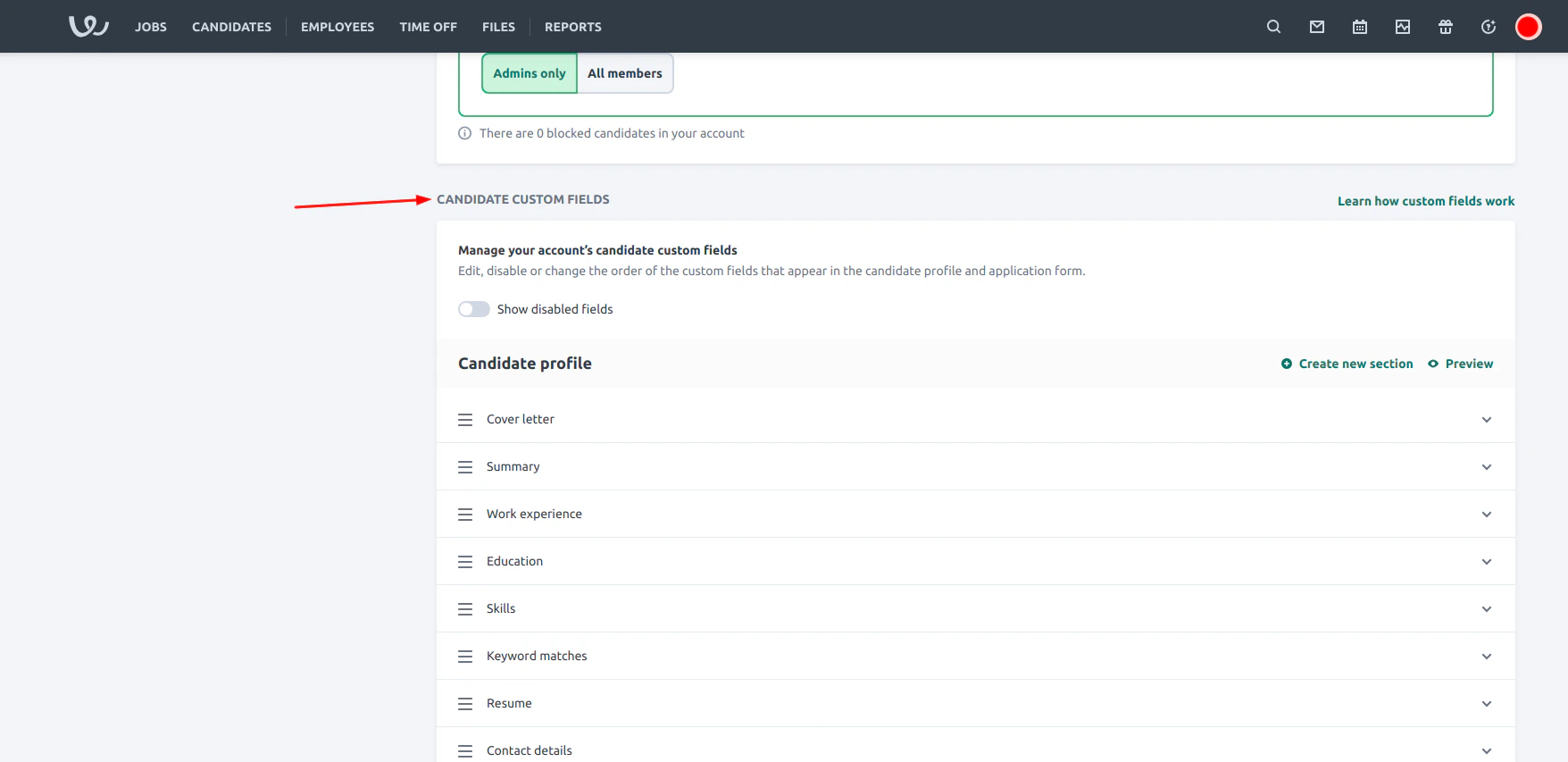
  <Step title="Click on Workflow">
    <Frame>
      <img className="rounded-md" style={{ margin:"0 auto",border:"1px solid #efefef" }} alt="Search Create Custom Object" src="https://mintcdn.com/stackone-hub-mintlify-faq-auth-1778741451/LT-A7QDyKh_KyNeP/images/workable/custom-field/custom-field-03.png?fit=max&auto=format&n=LT-A7QDyKh_KyNeP&q=85&s=f4daf7bcfdc8c9e0b294f2700e21c8b7" width="1895" height="904" data-path="images/workable/custom-field/custom-field-03.png" />
    </Frame>
  </Step>

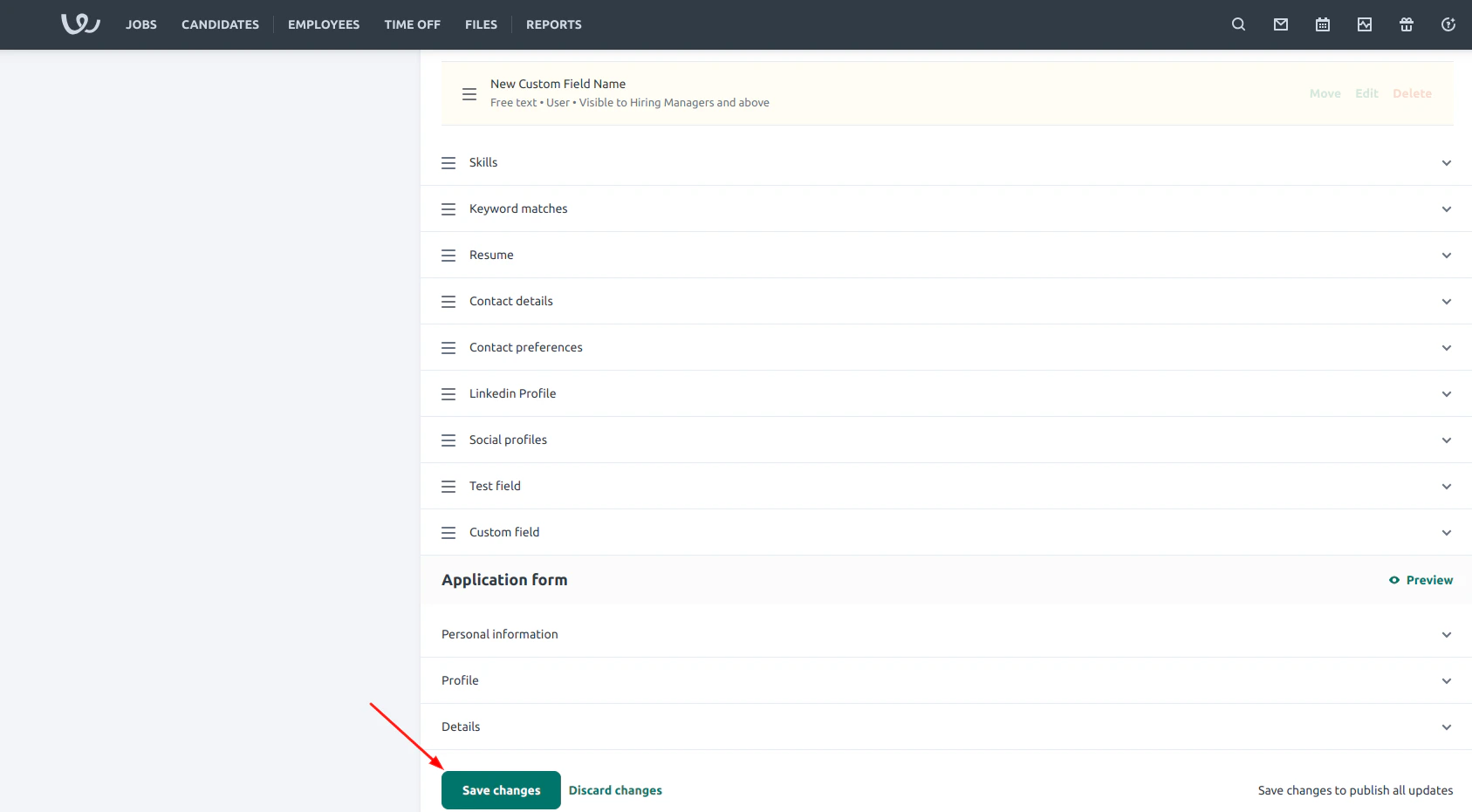
  <Step title="Scroll to the Candidate Custom Fields section">
    <Frame>
      <img className="rounded-md" style={{ margin:"0 auto",border:"1px solid #efefef" }} alt="Search Create Custom Object" src="https://mintcdn.com/stackone-hub-mintlify-faq-auth-1778741451/LT-A7QDyKh_KyNeP/images/workable/custom-field/custom-field-04.png?fit=max&auto=format&n=LT-A7QDyKh_KyNeP&q=85&s=4f0e6608cae4ab2bef36f6a552c6dc12" width="1756" height="853" data-path="images/workable/custom-field/custom-field-04.png" />
    </Frame>
  </Step>

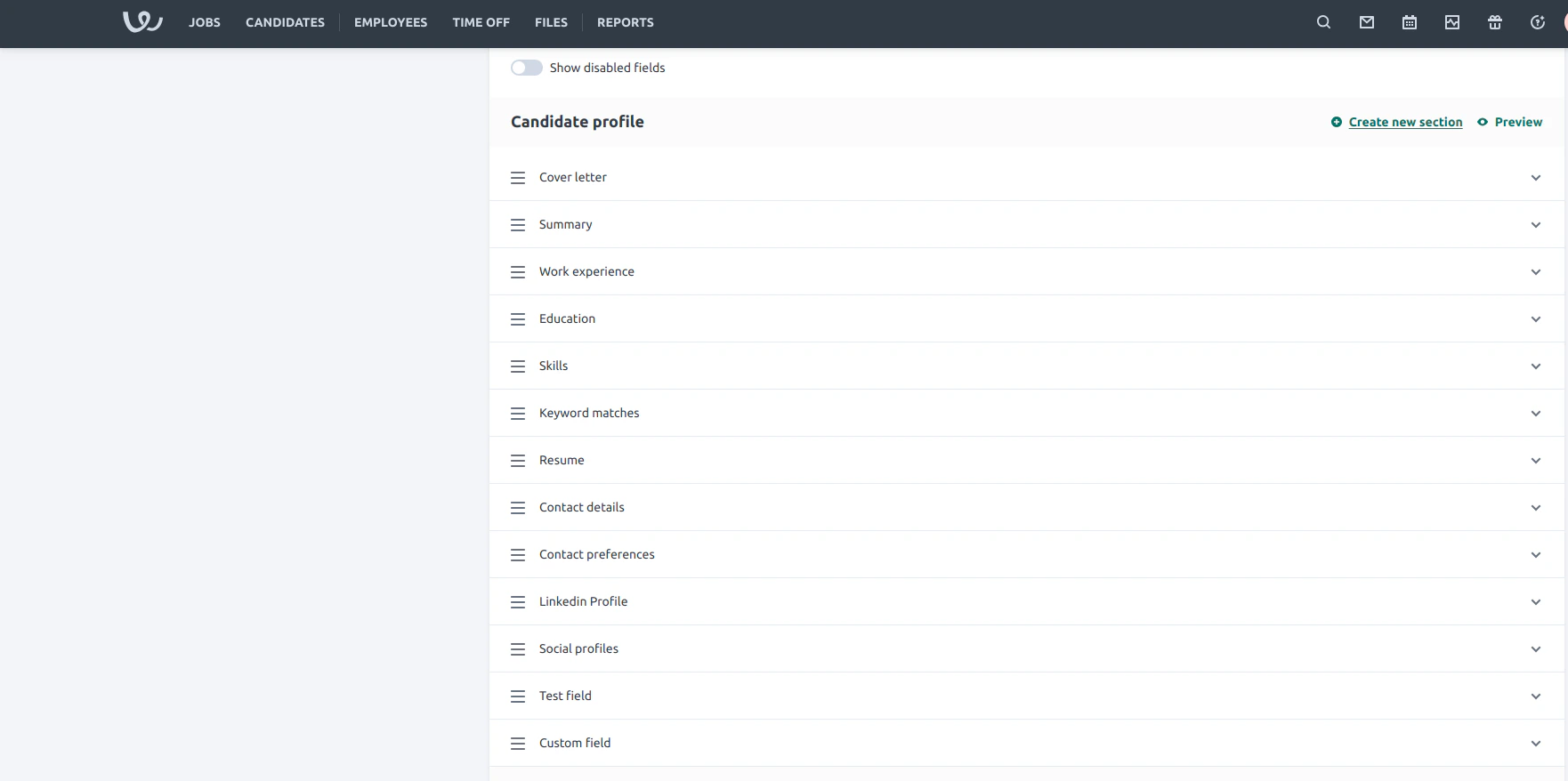
  <Step title="Fields sections">
    Find or Create a section where you want the custom field created.
    <Frame>
      <img className="rounded-md" style={{ margin:"0 auto",border:"1px solid #efefef" }} alt="Search Create Custom Object" src="https://mintcdn.com/stackone-hub-mintlify-faq-auth-1778741451/LT-A7QDyKh_KyNeP/images/workable/custom-field/custom-field-05.png?fit=max&auto=format&n=LT-A7QDyKh_KyNeP&q=85&s=c53e21820e3919cdfc532139ca590ad6" width="1762" height="878" data-path="images/workable/custom-field/custom-field-05.png" />
    </Frame>
  </Step>

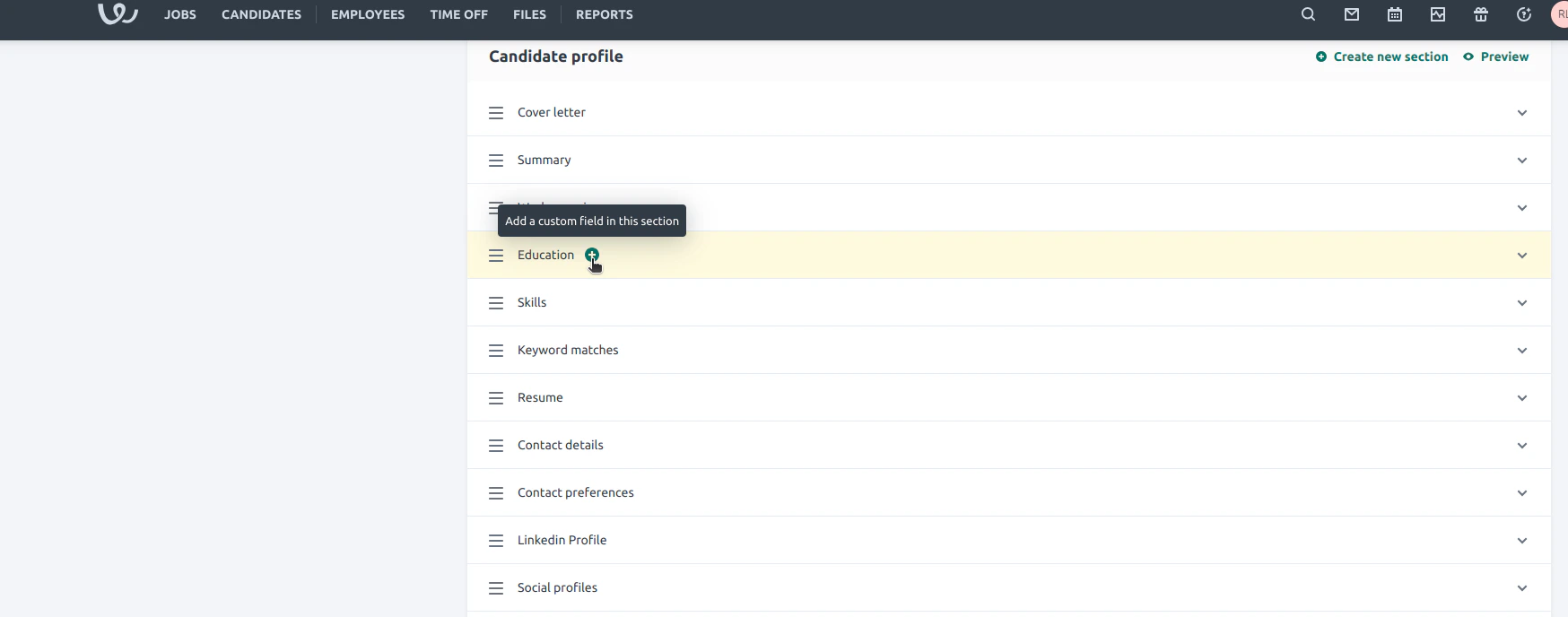
  <Step title="Add a new Custom Field">
    Hover over the desired section and click on the `+` icon to add a new custom field
    <Frame>
      <img className="rounded-md" style={{ margin:"0 auto",border:"1px solid #efefef" }} alt="Search Create Custom Object" src="https://mintcdn.com/stackone-hub-mintlify-faq-auth-1778741451/LT-A7QDyKh_KyNeP/images/workable/custom-field/custom-field-06.png?fit=max&auto=format&n=LT-A7QDyKh_KyNeP&q=85&s=6757414bfa8ec89c750b343ab095ba82" width="1748" height="688" data-path="images/workable/custom-field/custom-field-06.png" />
    </Frame>
  </Step>

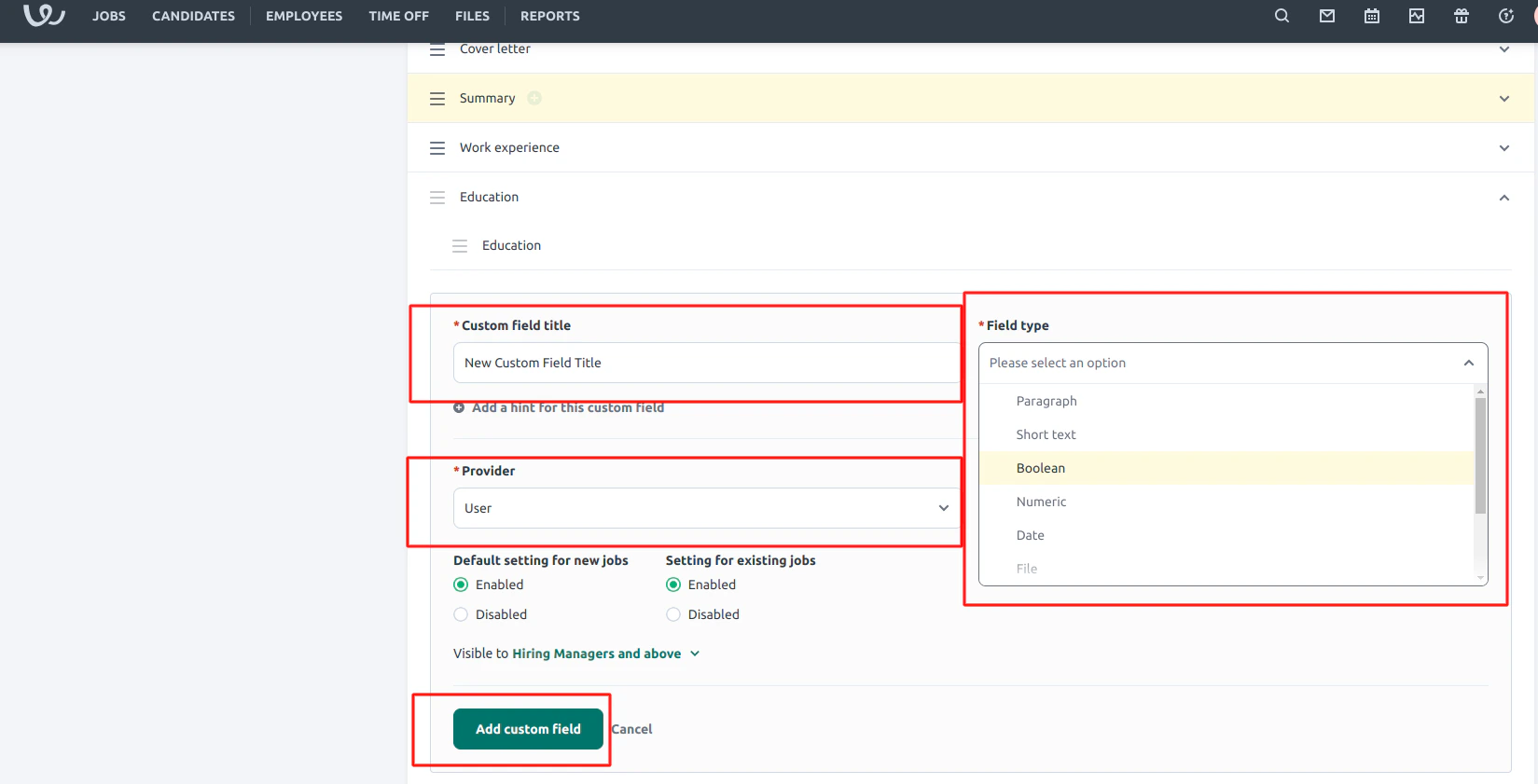
  <Step title="Custom field form">
    1. Enter a `Custom field title`
    2. Select the appropriate  `Field type`
    3. Set the `Provider` to `User`
    4. Click `Add Custom field`

    <Warning>
      The Provider field must be set to User to be able to edit the field via API
    </Warning>

    <Frame>
      <img className="rounded-md" style={{ margin:"0 auto",border:"1px solid #efefef" }} alt="Search Create Custom Object" src="https://mintcdn.com/stackone-hub-mintlify-faq-auth-1778741451/LT-A7QDyKh_KyNeP/images/workable/custom-field/custom-field-08.png?fit=max&auto=format&n=LT-A7QDyKh_KyNeP&q=85&s=ec564c5d5eefcafcc2385b4c88dbb30e" width="1649" height="841" data-path="images/workable/custom-field/custom-field-08.png" />
    </Frame>
  </Step>

  <Step title="Save the changes">
    Scroll to the bottom and click <b>Save Changes</b>

    <Frame>
      <img className="rounded-md" style={{ margin:"0 auto",border:"1px solid #efefef" }} alt="Search Create Custom Object" src="https://mintcdn.com/stackone-hub-mintlify-faq-auth-1778741451/LT-A7QDyKh_KyNeP/images/workable/custom-field/custom-field-09.png?fit=max&auto=format&n=LT-A7QDyKh_KyNeP&q=85&s=a2e9b6f5b9787002d0ac011f0bc24b3e" width="1687" height="931" data-path="images/workable/custom-field/custom-field-09.png" />
    </Frame>
  </Step>

  <Step title="Created custom field">
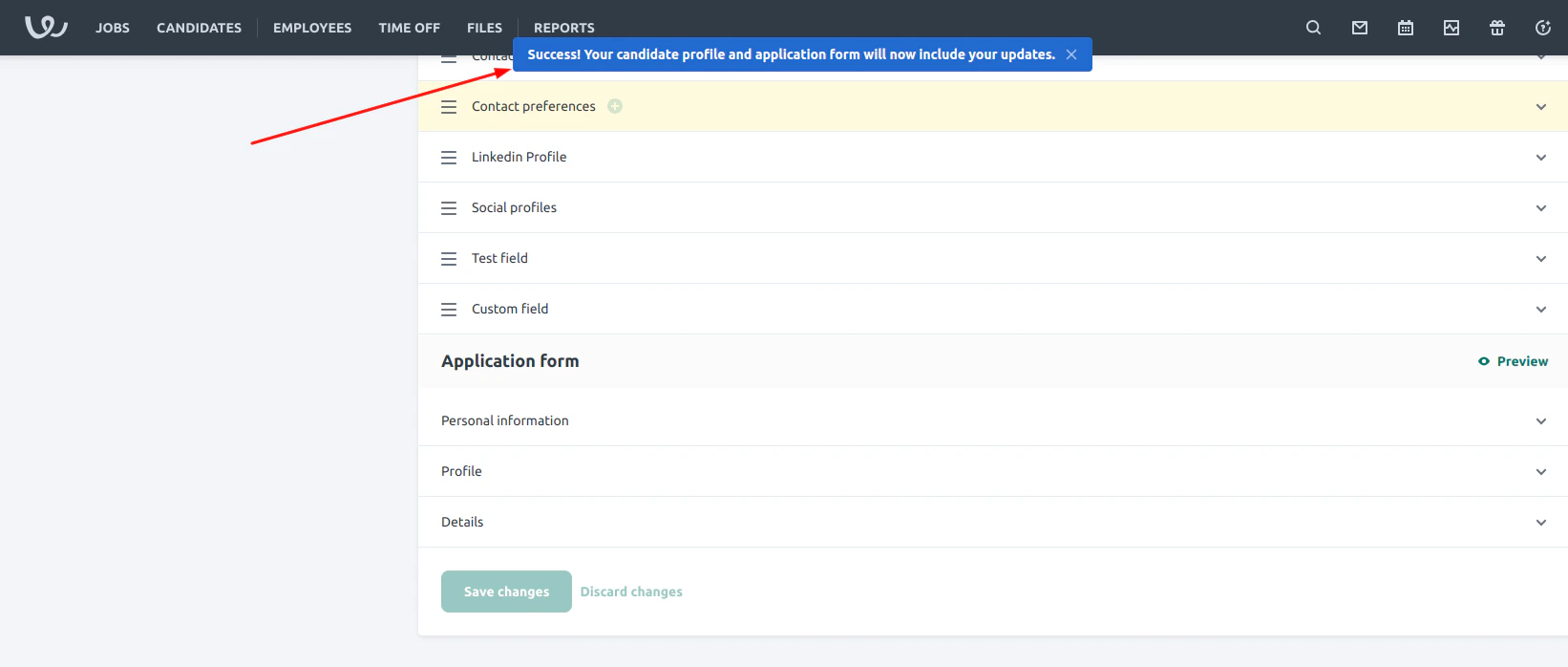
    A success message shown after the custom field is created
    <Frame>
      <img className="rounded-md" style={{ margin:"0 auto",border:"1px solid #efefef" }} alt="Search Create Custom Object" src="https://mintcdn.com/stackone-hub-mintlify-faq-auth-1778741451/LT-A7QDyKh_KyNeP/images/workable/custom-field/custom-field-10.png?fit=max&auto=format&n=LT-A7QDyKh_KyNeP&q=85&s=a1bd5cb59d05ce8ae2b7f816ef4c23b6" width="1642" height="698" data-path="images/workable/custom-field/custom-field-10.png" />
    </Frame>
  </Step>

  <Step title="Application form preview">
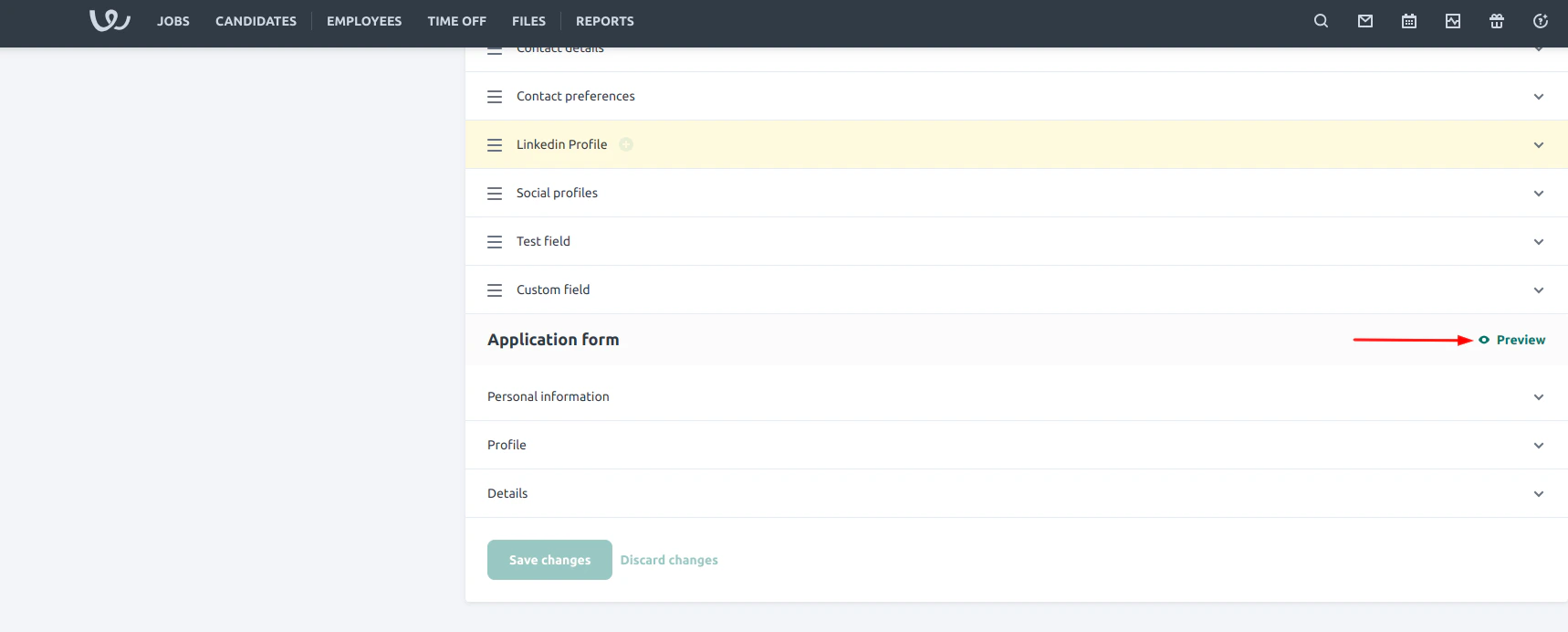
    You can preview where this sits on the candiate profile by Clicking the `Preview` button.
    <Frame>
      <img className="rounded-md" style={{ margin:"0 auto",border:"1px solid #efefef" }} alt="Search Create Custom Object" src="https://mintcdn.com/stackone-hub-mintlify-faq-auth-1778741451/LT-A7QDyKh_KyNeP/images/workable/custom-field/custom-field-11.png?fit=max&auto=format&n=LT-A7QDyKh_KyNeP&q=85&s=e7e00b4a1982f7664b947cfd4650060c" width="1718" height="692" data-path="images/workable/custom-field/custom-field-11.png" />
    </Frame>
  </Step>

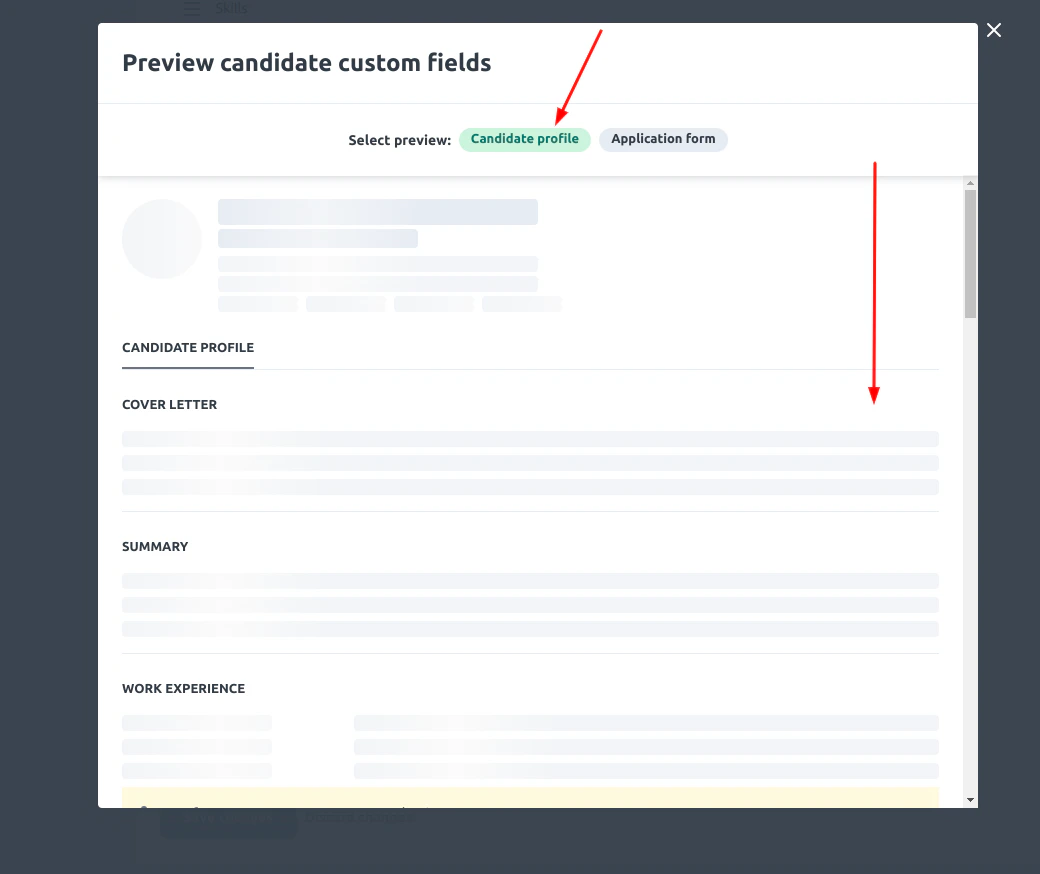
  <Step title="Preview candidate custom fields">
    Ensure you Select `Candidate profile`

    <Frame>
      <img className="rounded-md" style={{ margin:"0 auto",border:"1px solid #efefef" }} alt="Search Create Custom Object" src="https://mintcdn.com/stackone-hub-mintlify-faq-auth-1778741451/LAIemKNWmdg65IxC/images/workable/custom-field/custom-field-12.png?fit=max&auto=format&n=LAIemKNWmdg65IxC&q=85&s=bb44c6e13c2fff3c5cb36672d9cd390b" width="1040" height="874" data-path="images/workable/custom-field/custom-field-12.png" />
    </Frame>

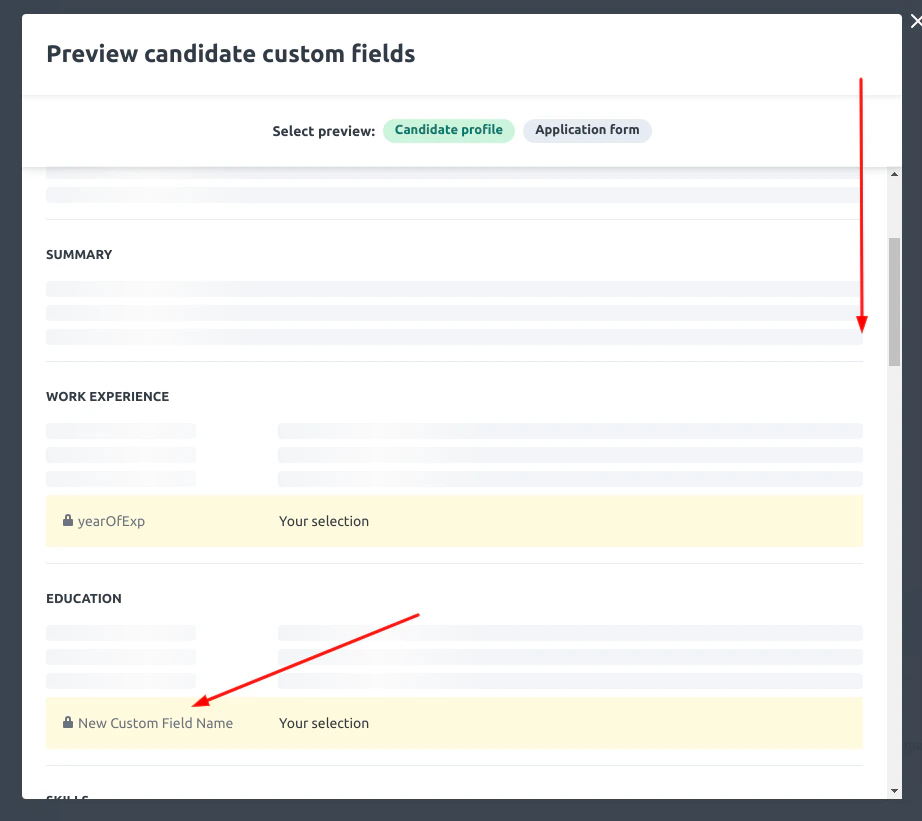
    Scroll down to see the newly created custom field
    <Frame>
      <img className="rounded-md" style={{ margin:"0 auto",border:"1px solid #efefef" }} alt="Search Create Custom Object" src="https://mintcdn.com/stackone-hub-mintlify-faq-auth-1778741451/LAIemKNWmdg65IxC/images/workable/custom-field/custom-field-13.png?fit=max&auto=format&n=LAIemKNWmdg65IxC&q=85&s=8980bb136f19ad812fbeb5e2d8337cb0" width="922" height="821" data-path="images/workable/custom-field/custom-field-13.png" />
    </Frame>
  </Step>
</Steps>

## Useful Links

<Card title="API Reference" icon="link" href="https://help.workable.com/hc/en-us/articles/115012903847-Custom-fields-for-candidate-profiles">
  [https://help.workable.com/hc/en-us/articles/115012903847-Custom-fields-for-candidate-profiles](https://help.workable.com/hc/en-us/articles/115012903847-Custom-fields-for-candidate-profiles)
</Card>