> ## Documentation Index
> Fetch the complete documentation index at: https://stackone-hub-mintlify-faq-auth-1778741451.mintlify.site/llms.txt
> Use this file to discover all available pages before exploring further.

# Bullhorn Application Custom Fields

> To create and view application custom fields in Bullhorn, follow these steps.

<Warning>
  This guide assumes that you have administrative privileges for your Bullhorn account.
</Warning>

## Configure Bullhorn Application Custom Fields
<Steps>
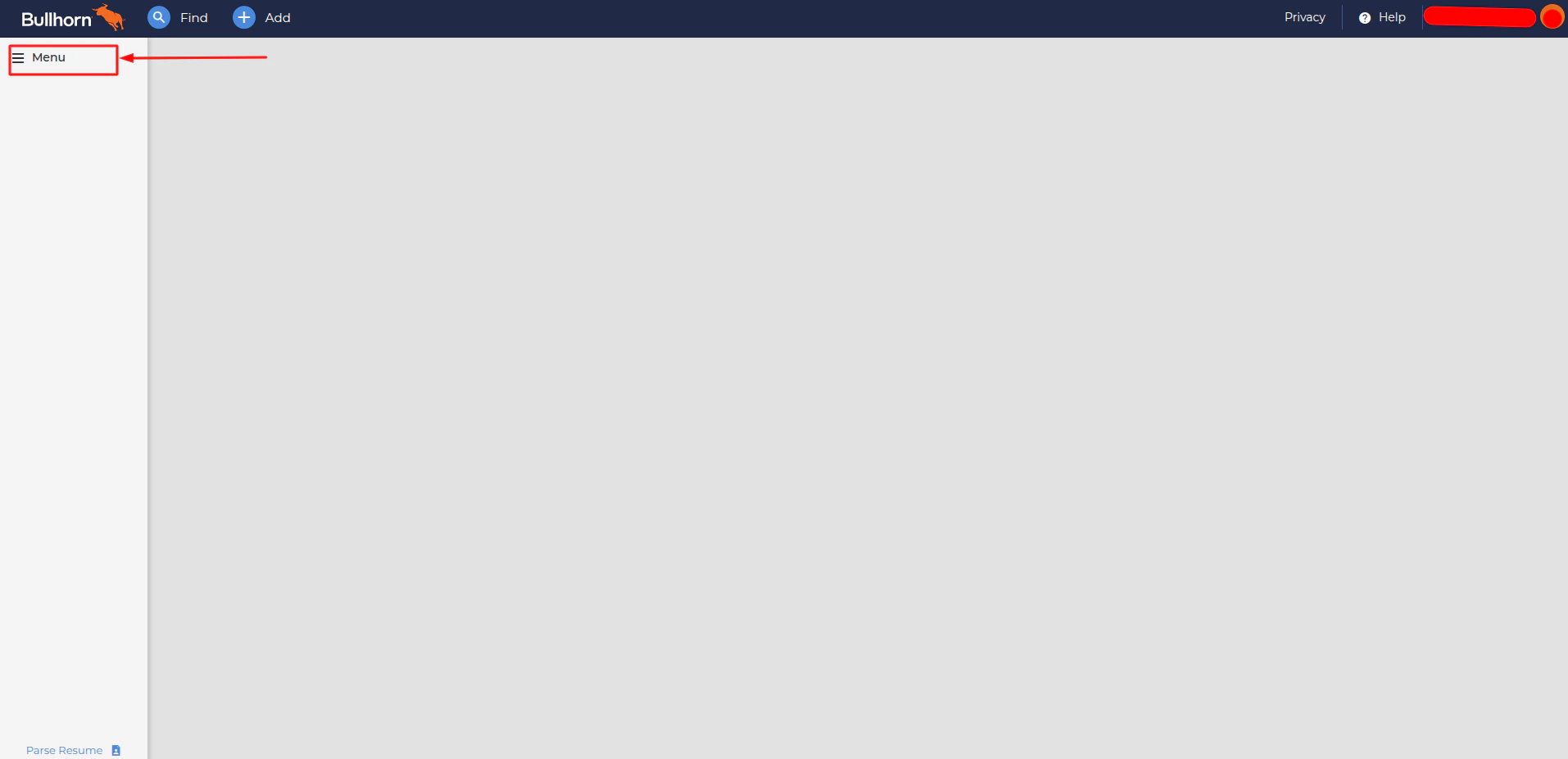
  <Step title="Access the Main Menu">
    <Frame>
      <img className="rounded-md" style={{ margin: '0 auto', border: '1px solid #efefef' }} alt="Dashboard window" src="https://mintcdn.com/stackone-hub-mintlify-faq-auth-1778741451/UhVL1I4kt2elcl0R/images/bullhorn/custom-field/custom-field-01.png?fit=max&auto=format&n=UhVL1I4kt2elcl0R&q=85&s=a64fc4934ffa2f9bfd3d35611befa400" width="1914" height="927" data-path="images/bullhorn/custom-field/custom-field-01.png" />
    </Frame>
  </Step>

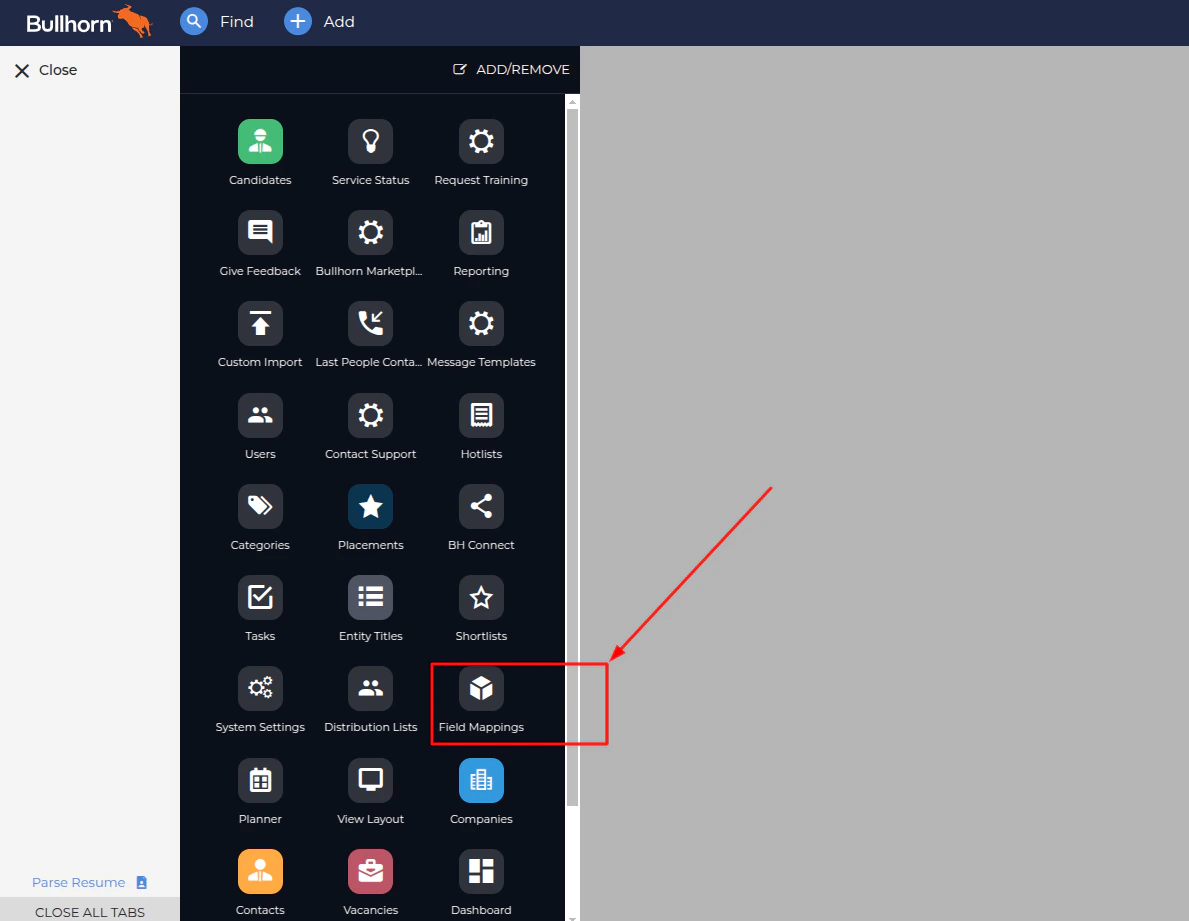
  <Step title="Open Field Mappings">
    <Frame>
      <img className="rounded-md" style={{ margin: '0 auto', border: '1px solid #efefef' }} alt="Admin menu" src="https://mintcdn.com/stackone-hub-mintlify-faq-auth-1778741451/UhVL1I4kt2elcl0R/images/bullhorn/custom-field/custom-field-config-01.png?fit=max&auto=format&n=UhVL1I4kt2elcl0R&q=85&s=d385212e417262fbeb7a76063eb8cf77" width="1189" height="921" data-path="images/bullhorn/custom-field/custom-field-config-01.png" />
    </Frame>
  </Step>

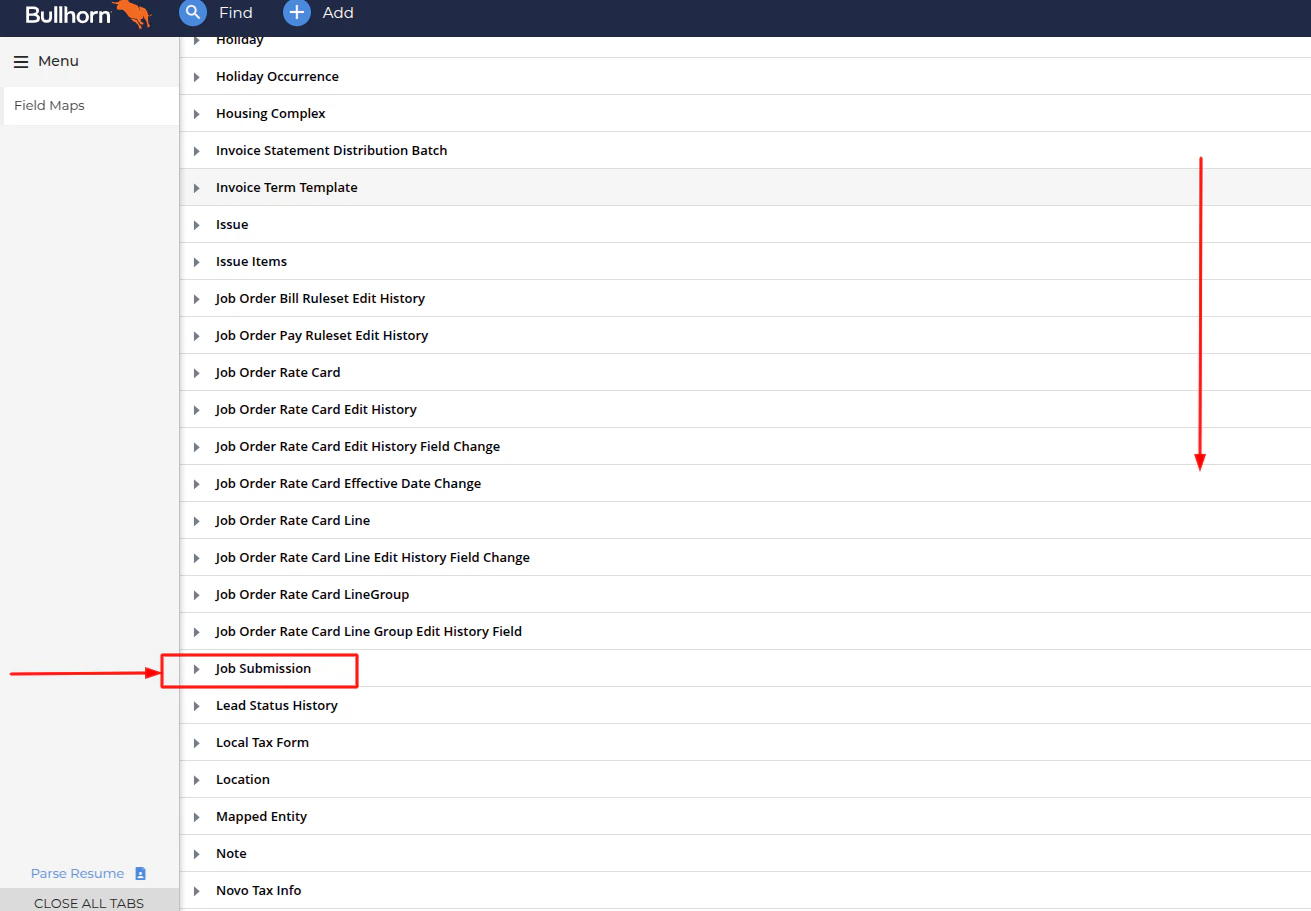
  <Step title="Choose Field Group">
    Scroll down and select the `Job Submission` group to configure the custom field.
    <Frame>
      <img className="rounded-md" style={{ margin: '0 auto', border: '1px solid #efefef' }} alt="Fields Group" src="https://mintcdn.com/stackone-hub-mintlify-faq-auth-1778741451/UhVL1I4kt2elcl0R/images/bullhorn/custom-field/custom-field-config-02.png?fit=max&auto=format&n=UhVL1I4kt2elcl0R&q=85&s=69a830786c8eceb7232d0c4a793ac0aa" width="1311" height="911" data-path="images/bullhorn/custom-field/custom-field-config-02.png" />
    </Frame>
  </Step>

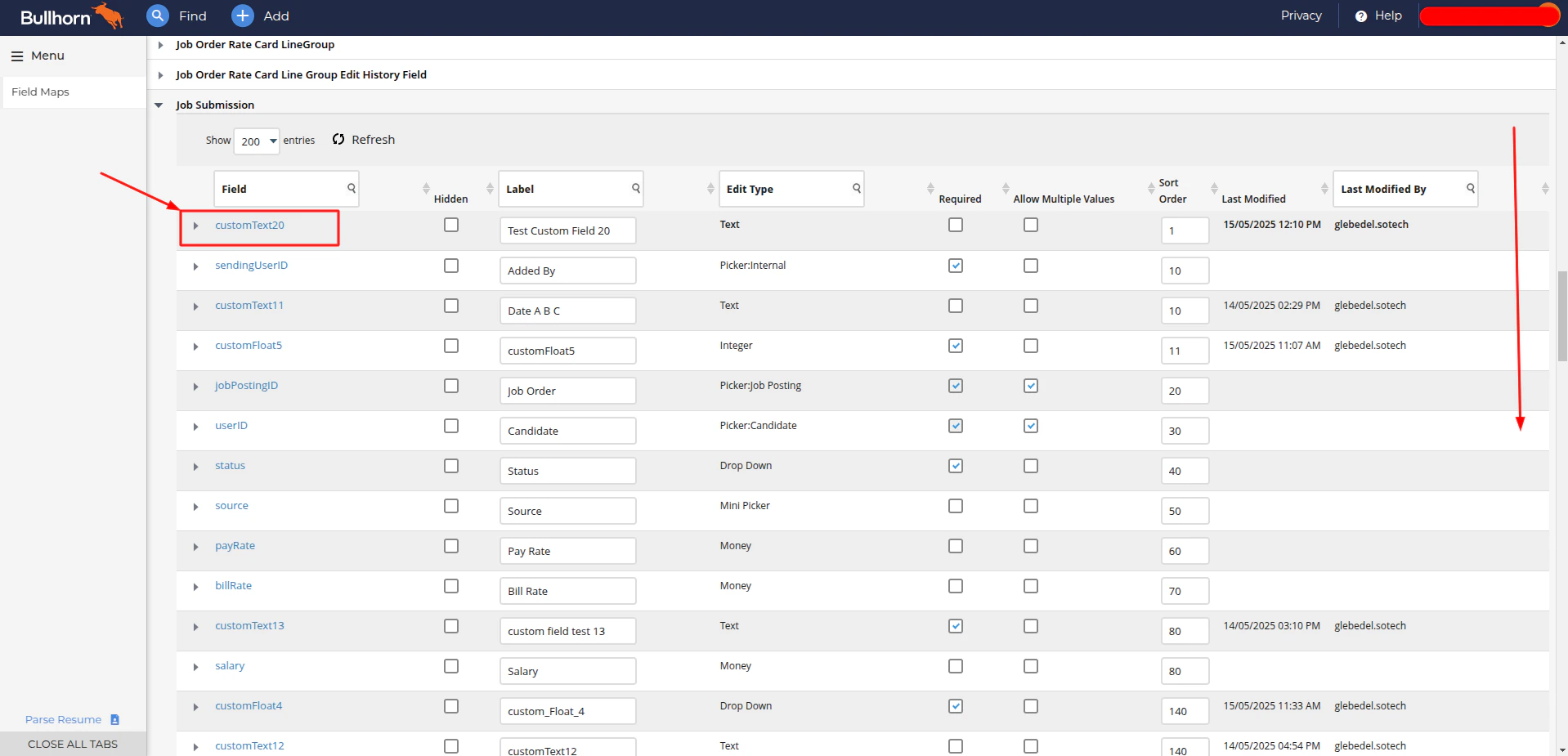
  <Step title="Review Job Submission Fields">
    Review the job submission-related fields and select an unused one to configure.
    <Frame>
      <img className="rounded-md" style={{ margin: '0 auto', border: '1px solid #efefef' }} alt="Fields Group" src="https://mintcdn.com/stackone-hub-mintlify-faq-auth-1778741451/UhVL1I4kt2elcl0R/images/bullhorn/custom-field/custom-field-config-03.png?fit=max&auto=format&n=UhVL1I4kt2elcl0R&q=85&s=d13f37cc4e9a7927b2c95abb0114bf9c" width="1918" height="925" data-path="images/bullhorn/custom-field/custom-field-config-03.png" />
    </Frame>
  </Step>

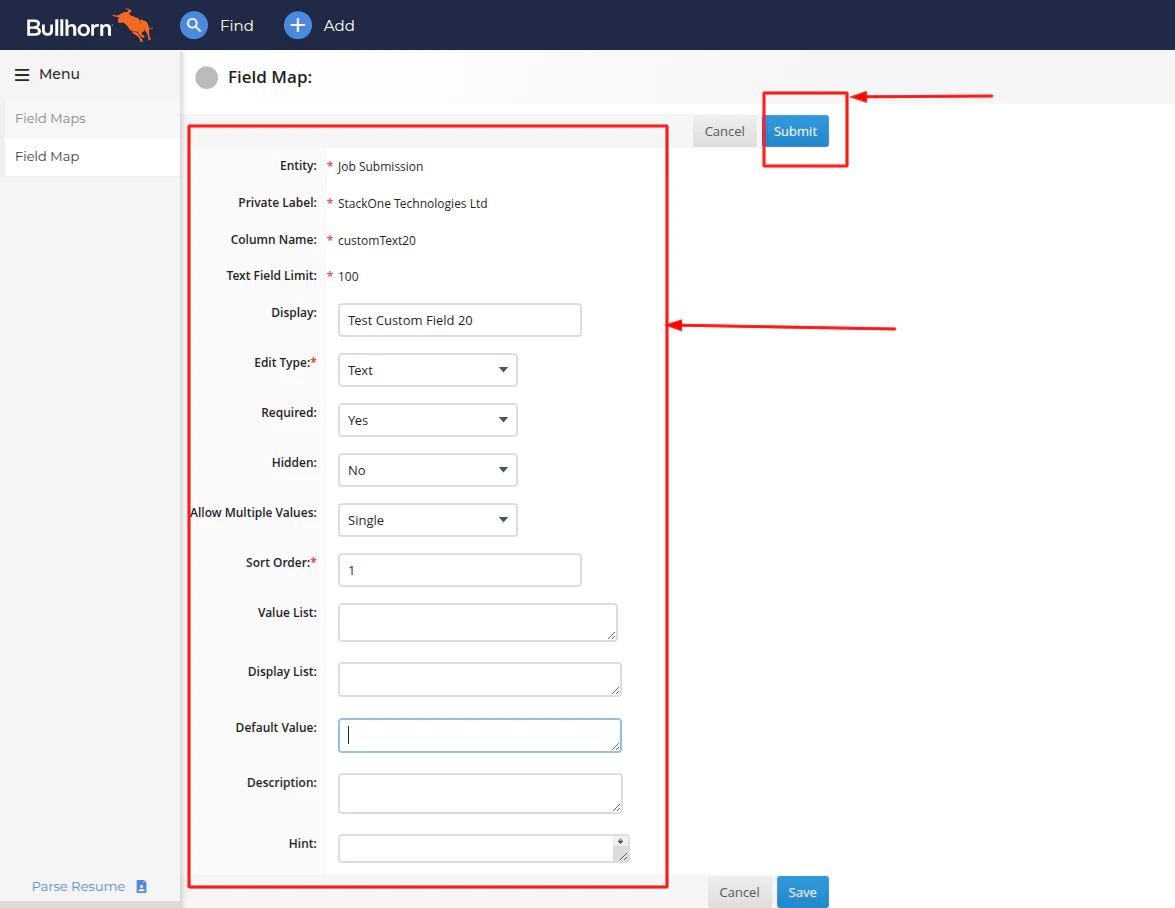
  <Step title="Configure Field Settings">
    In the custom fields configuration form, set your desired values and click the <b>`Save`</b> button to apply your changes.

    <Frame>
      <img className="rounded-md" style={{ margin: '0 auto', border: '1px solid #efefef' }} alt="Fields Group" src="https://mintcdn.com/stackone-hub-mintlify-faq-auth-1778741451/UhVL1I4kt2elcl0R/images/bullhorn/custom-field/custom-field-config-04.png?fit=max&auto=format&n=UhVL1I4kt2elcl0R&q=85&s=99bb1dfac4a7b5209c7c1b2b2f56c95e" width="1175" height="908" data-path="images/bullhorn/custom-field/custom-field-config-04.png" />
    </Frame>
  </Step>

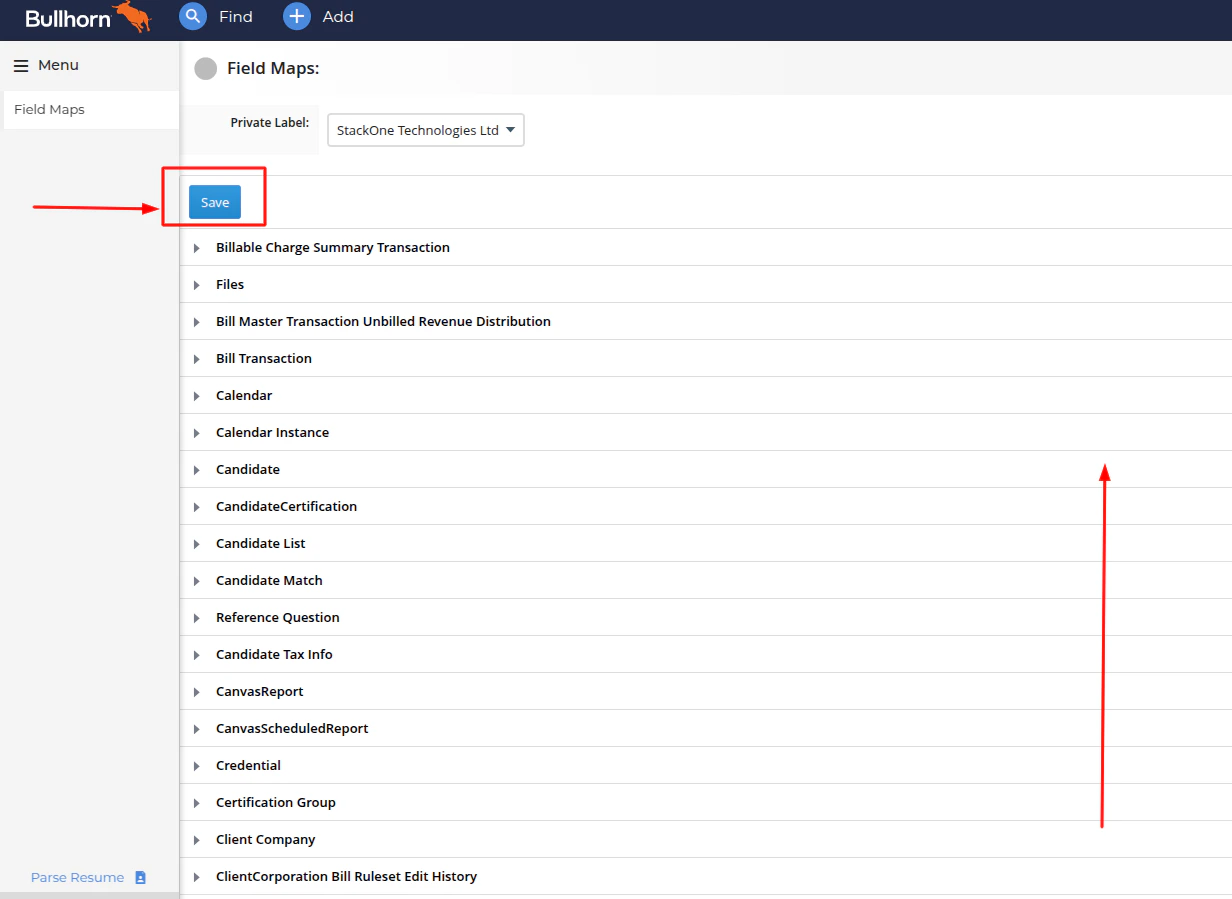
  <Step title="Save Field Configuration">
    Return to the top of the page and click the <b>`Save`</b> button to finalize your changes.

    <Frame>
      <img className="rounded-md" style={{ margin: '0 auto', border: '1px solid #efefef' }} alt="Fields Group" src="https://mintcdn.com/stackone-hub-mintlify-faq-auth-1778741451/UhVL1I4kt2elcl0R/images/bullhorn/custom-field/custom-field-config-05.png?fit=max&auto=format&n=UhVL1I4kt2elcl0R&q=85&s=3f0458bdf122a9d1c4c6dde6027b5d45" width="1232" height="899" data-path="images/bullhorn/custom-field/custom-field-config-05.png" />
    </Frame>
  </Step>

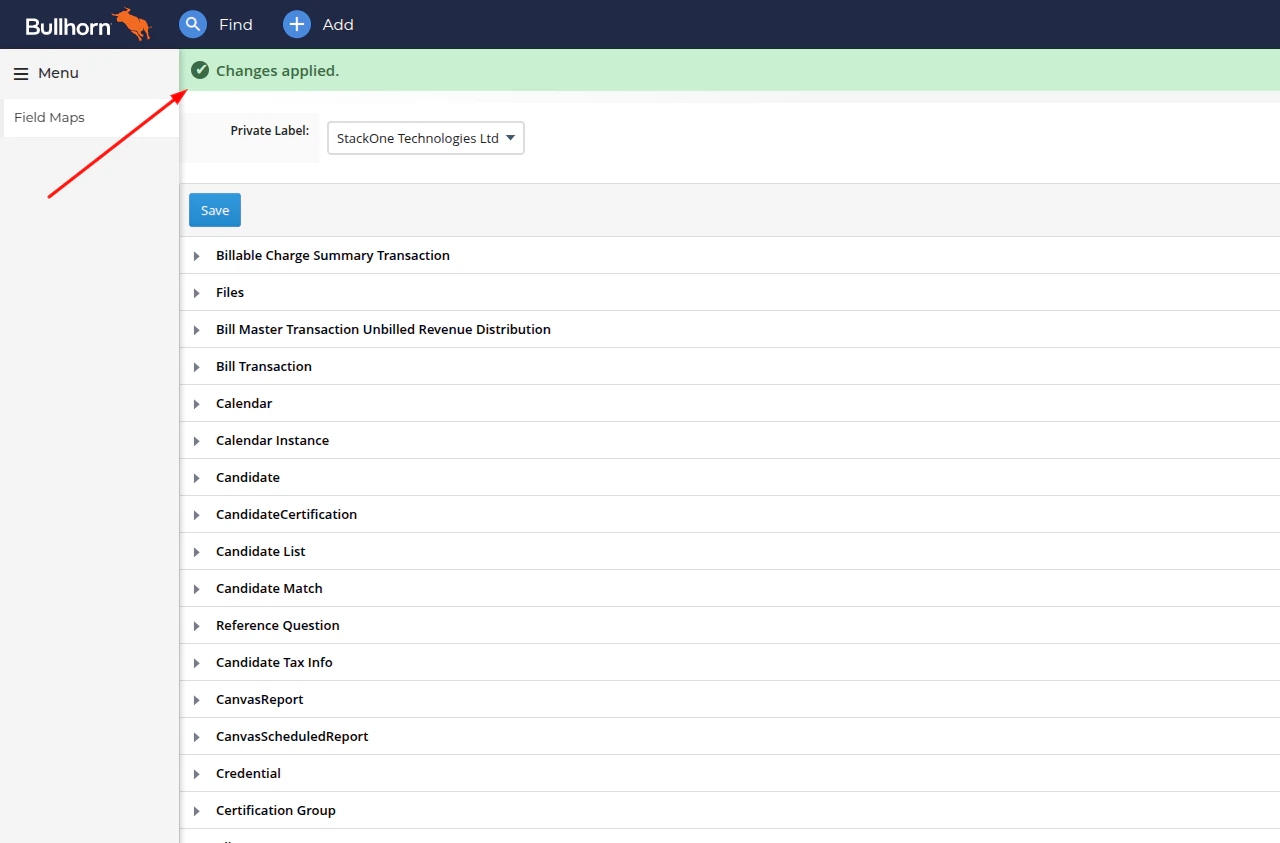
  <Step title="Confirm Configuration">
    A confirmation message will appear once your configuration has been successfully saved.
    <Frame>
      <img className="rounded-md" style={{ margin: '0 auto', border: '1px solid #efefef' }} alt="Fields Group" src="https://mintcdn.com/stackone-hub-mintlify-faq-auth-1778741451/UhVL1I4kt2elcl0R/images/bullhorn/custom-field/custom-field-config-06.png?fit=max&auto=format&n=UhVL1I4kt2elcl0R&q=85&s=980ddcba8142602f3e63e39d9dfc878b" width="1280" height="843" data-path="images/bullhorn/custom-field/custom-field-config-06.png" />
    </Frame>
  </Step>
</Steps>

## Using Bullhorn Application Custom Fields
<Steps>
  <Step title="Access the Main Menu">
    <Frame>
      <img className="rounded-md" style={{ margin: '0 auto', border: '1px solid #efefef' }} alt="Dashboard window" src="https://mintcdn.com/stackone-hub-mintlify-faq-auth-1778741451/UhVL1I4kt2elcl0R/images/bullhorn/custom-field/custom-field-01.png?fit=max&auto=format&n=UhVL1I4kt2elcl0R&q=85&s=a64fc4934ffa2f9bfd3d35611befa400" width="1914" height="927" data-path="images/bullhorn/custom-field/custom-field-01.png" />
    </Frame>
  </Step>

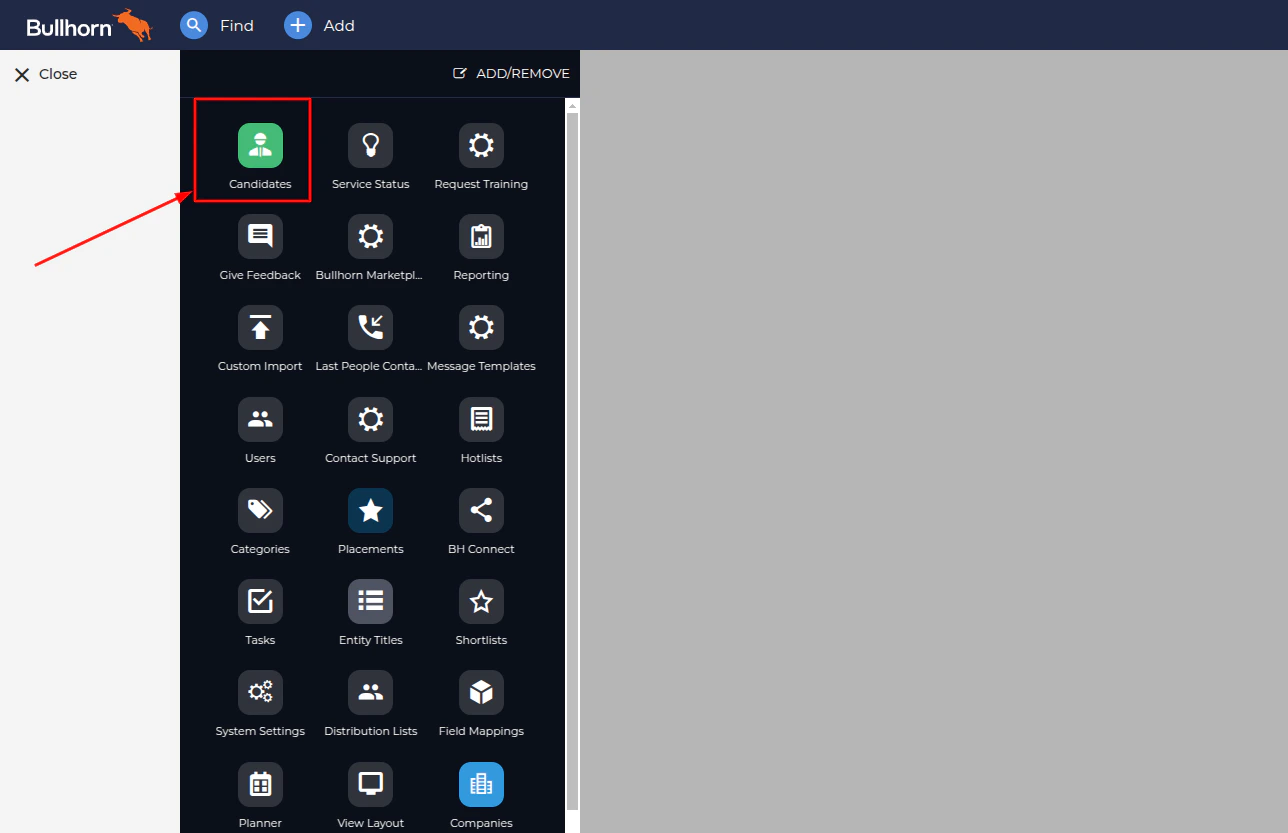
  <Step title="Navigate to Candidates Section">
    <Frame>
      <img className="rounded-md" style={{ margin: '0 auto', border: '1px solid #efefef' }} alt="Admin menu" src="https://mintcdn.com/stackone-hub-mintlify-faq-auth-1778741451/UhVL1I4kt2elcl0R/images/bullhorn/custom-field/custom-field-02.png?fit=max&auto=format&n=UhVL1I4kt2elcl0R&q=85&s=4b1fe653095bb19fe8b28ce551f232c1" width="1288" height="833" data-path="images/bullhorn/custom-field/custom-field-02.png" />
    </Frame>
  </Step>

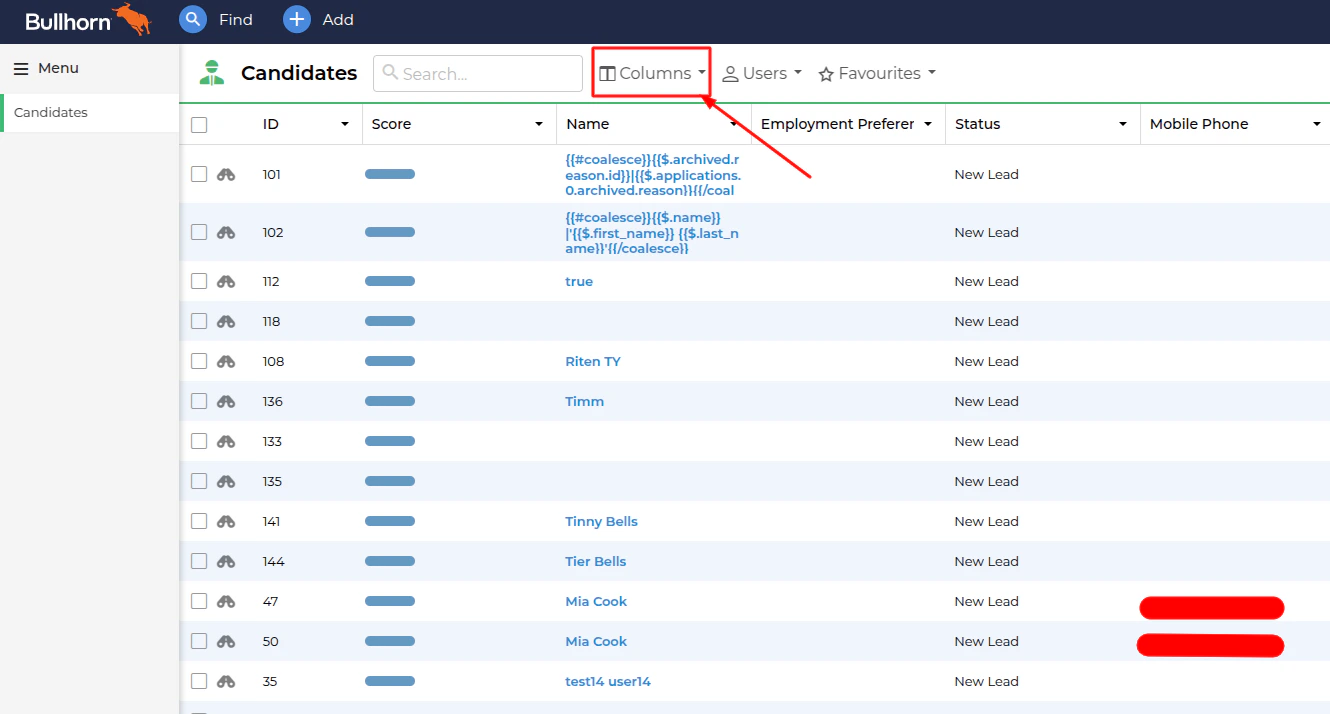
  <Step title="Open Column Settings">
    <Frame>
      <img className="rounded-md" style={{ margin: '0 auto', border: '1px solid #efefef' }} alt="Candidate table" src="https://mintcdn.com/stackone-hub-mintlify-faq-auth-1778741451/UhVL1I4kt2elcl0R/images/bullhorn/custom-field/custom-field-03.png?fit=max&auto=format&n=UhVL1I4kt2elcl0R&q=85&s=629a2145eebefe1875d392f287f00d62" width="1330" height="714" data-path="images/bullhorn/custom-field/custom-field-03.png" />
    </Frame>
  </Step>

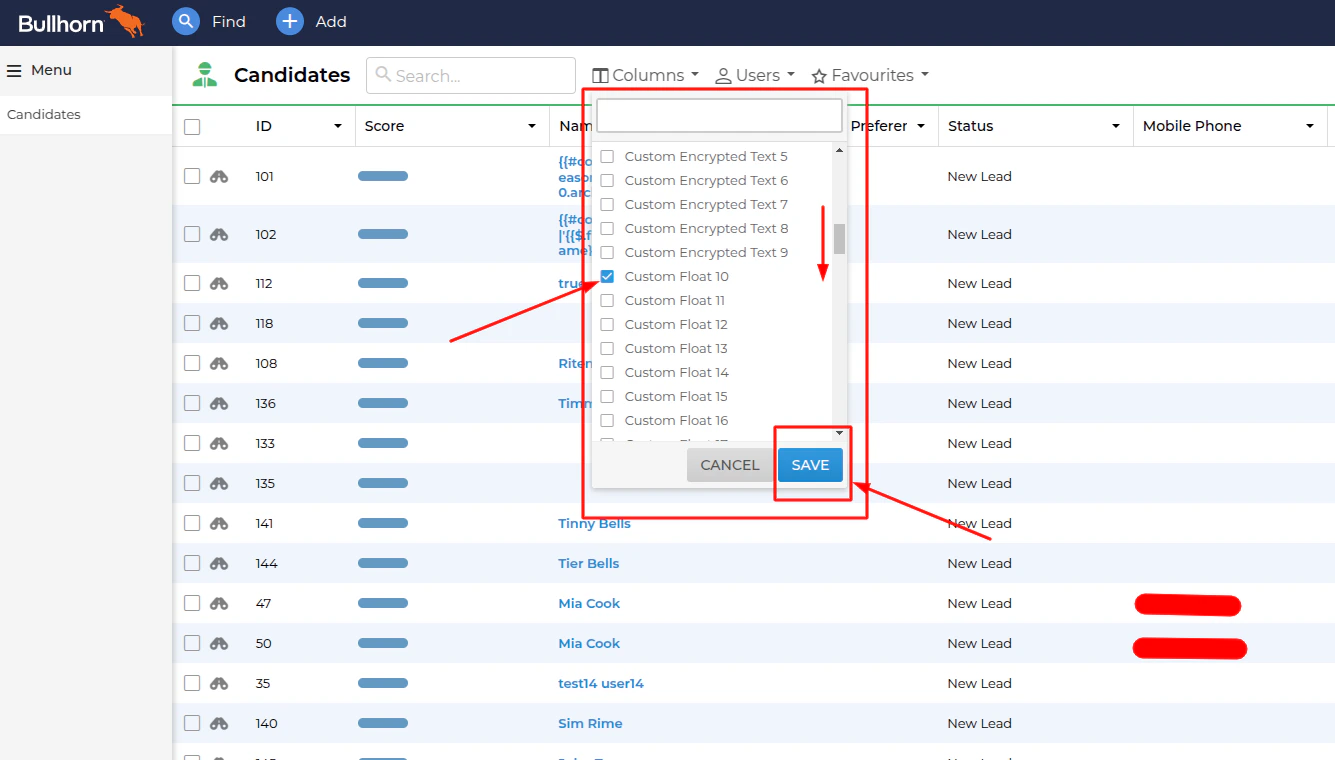
  <Step title="Select Custom Fields to Display">
    In the custom fields table, scroll down and select the desired custom fields by checking their corresponding checkboxes in the dropdown menu.\
    Then, click the <b>`Save`</b> button to apply your changes.

    <Frame>
      <img className="rounded-md" style={{ margin: '0 auto', border: '1px solid #efefef' }} alt="Custom fields column" src="https://mintcdn.com/stackone-hub-mintlify-faq-auth-1778741451/UhVL1I4kt2elcl0R/images/bullhorn/custom-field/custom-field-04.png?fit=max&auto=format&n=UhVL1I4kt2elcl0R&q=85&s=e40c76af4f675c5eeeed89f30cc6a741" width="1335" height="760" data-path="images/bullhorn/custom-field/custom-field-04.png" />
    </Frame>
  </Step>

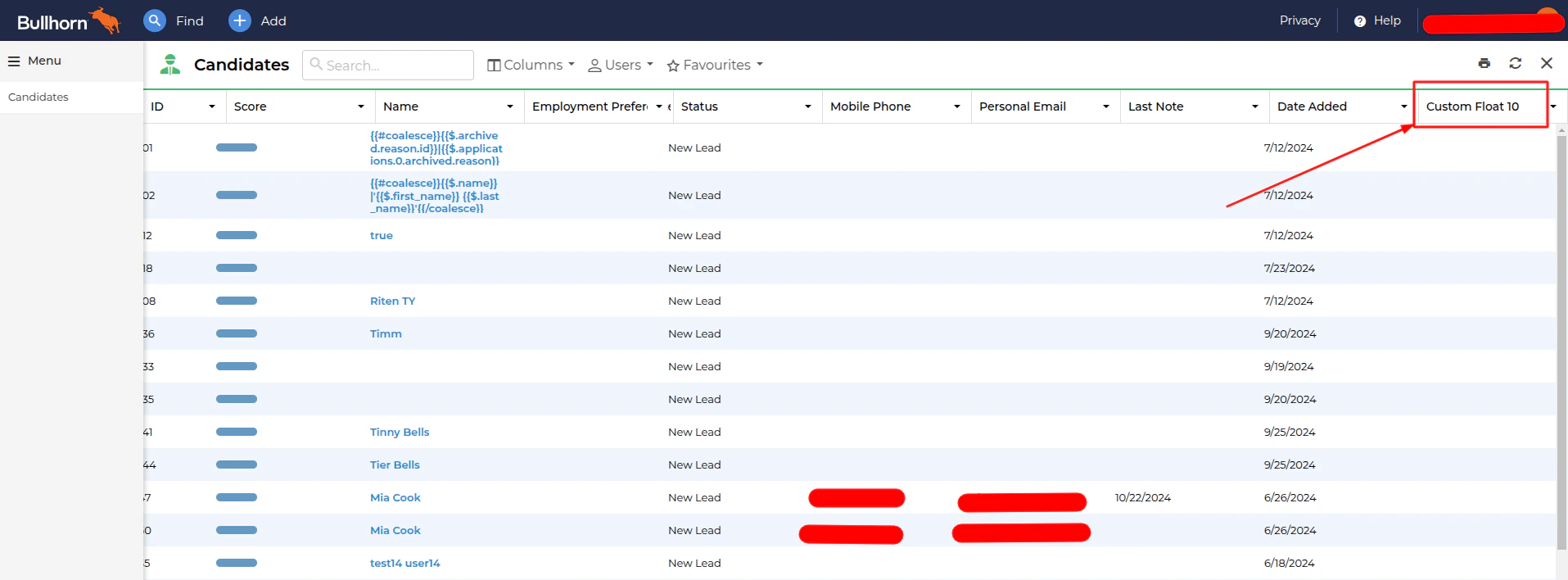
  <Step title="Arrange Custom Fields in Table">
    The custom field will now appear in the Candidate Table. You can reposition it by dragging and dropping to your preferred location.
    <Frame>
      <img className="rounded-md" style={{ margin: '0 auto', border: '1px solid #efefef' }} alt="Custom fields view in the table" src="https://mintcdn.com/stackone-hub-mintlify-faq-auth-1778741451/UhVL1I4kt2elcl0R/images/bullhorn/custom-field/custom-field-05.png?fit=max&auto=format&n=UhVL1I4kt2elcl0R&q=85&s=96fd9a82372cc8468d5f240a2e3c0659" width="1915" height="708" data-path="images/bullhorn/custom-field/custom-field-05.png" />
    </Frame>
  </Step>

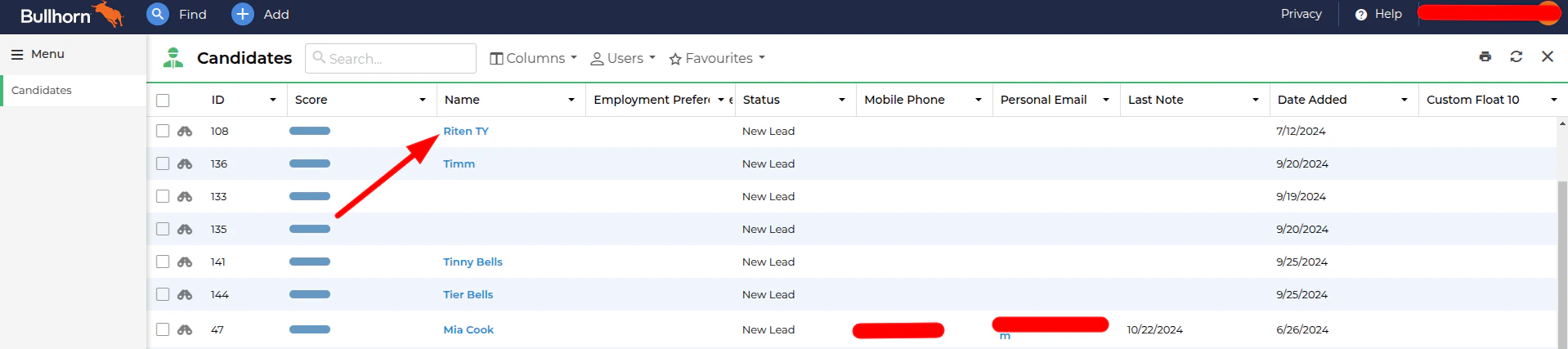
  <Step title="Access Candidate Details">
    In the candidate table, click on any candidate to view their detailed profile.
    <Frame>
      <img className="rounded-md" style={{ margin: '0 auto', border: '1px solid #efefef' }} alt="Candidate profile" src="https://mintcdn.com/stackone-hub-mintlify-faq-auth-1778741451/UhVL1I4kt2elcl0R/images/bullhorn/custom-field/custom-field-06.png?fit=max&auto=format&n=UhVL1I4kt2elcl0R&q=85&s=8fdeef4476cec316a9cf773b3a514580" width="1918" height="427" data-path="images/bullhorn/custom-field/custom-field-06.png" />
    </Frame>
  </Step>

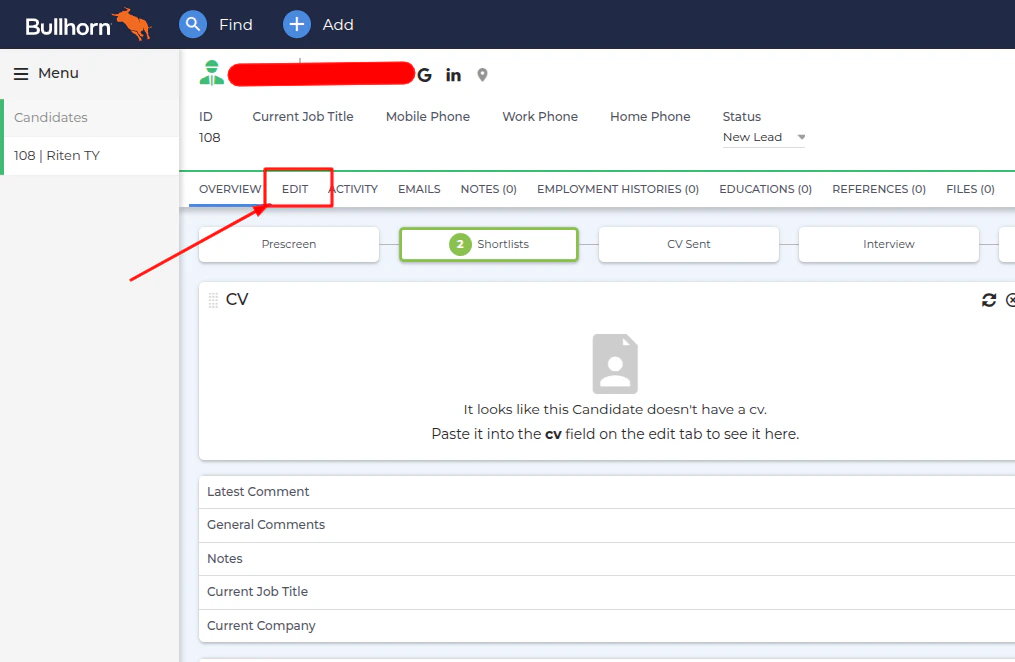
  <Step title="Enter Edit Mode">
    In the candidate profile view, click the <b>`Edit`</b> button to modify or add custom field values.
    <Frame>
      <img className="rounded-md" style={{ margin: '0 auto', border: '1px solid #efefef' }} alt="Candidate profile with multiple fields" src="https://mintcdn.com/stackone-hub-mintlify-faq-auth-1778741451/UhVL1I4kt2elcl0R/images/bullhorn/custom-field/custom-field-07.png?fit=max&auto=format&n=UhVL1I4kt2elcl0R&q=85&s=a493bf4b4e0709b892f9a0af29e7d3a1" width="1015" height="662" data-path="images/bullhorn/custom-field/custom-field-07.png" />
    </Frame>
  </Step>

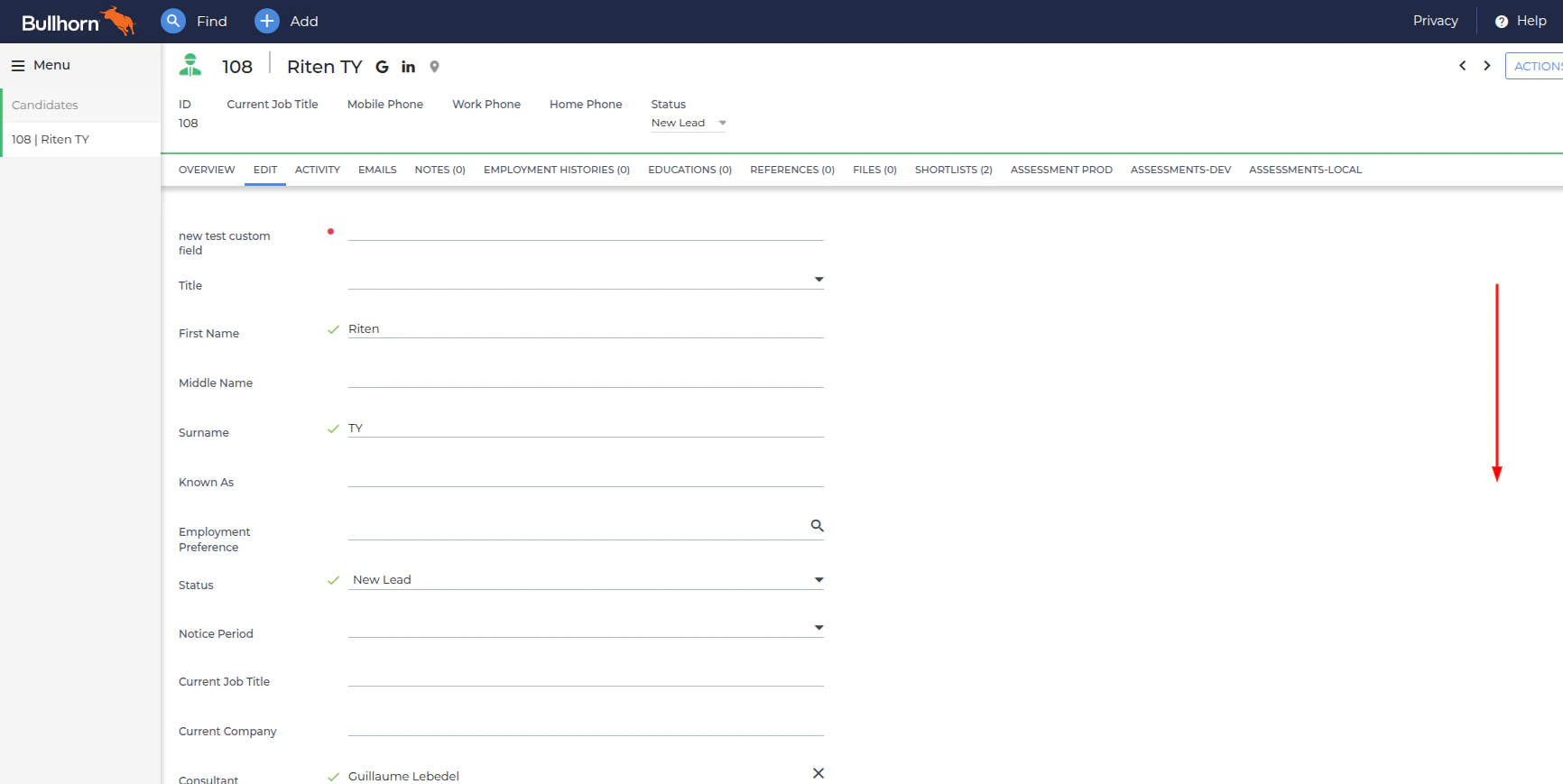
  <Step title="Locate Custom Field Section">
    Scroll down in the candidate profile edit section to locate and modify the custom field.
    <Frame>
      <img className="rounded-md" style={{ margin: '0 auto', border: '1px solid #efefef' }} alt="Candidate profile edit section" src="https://mintcdn.com/stackone-hub-mintlify-faq-auth-1778741451/UhVL1I4kt2elcl0R/images/bullhorn/custom-field/custom-field-08.png?fit=max&auto=format&n=UhVL1I4kt2elcl0R&q=85&s=0f4ed741d09d74703f54ae817ec36f86" width="1732" height="869" data-path="images/bullhorn/custom-field/custom-field-08.png" />
    </Frame>
  </Step>

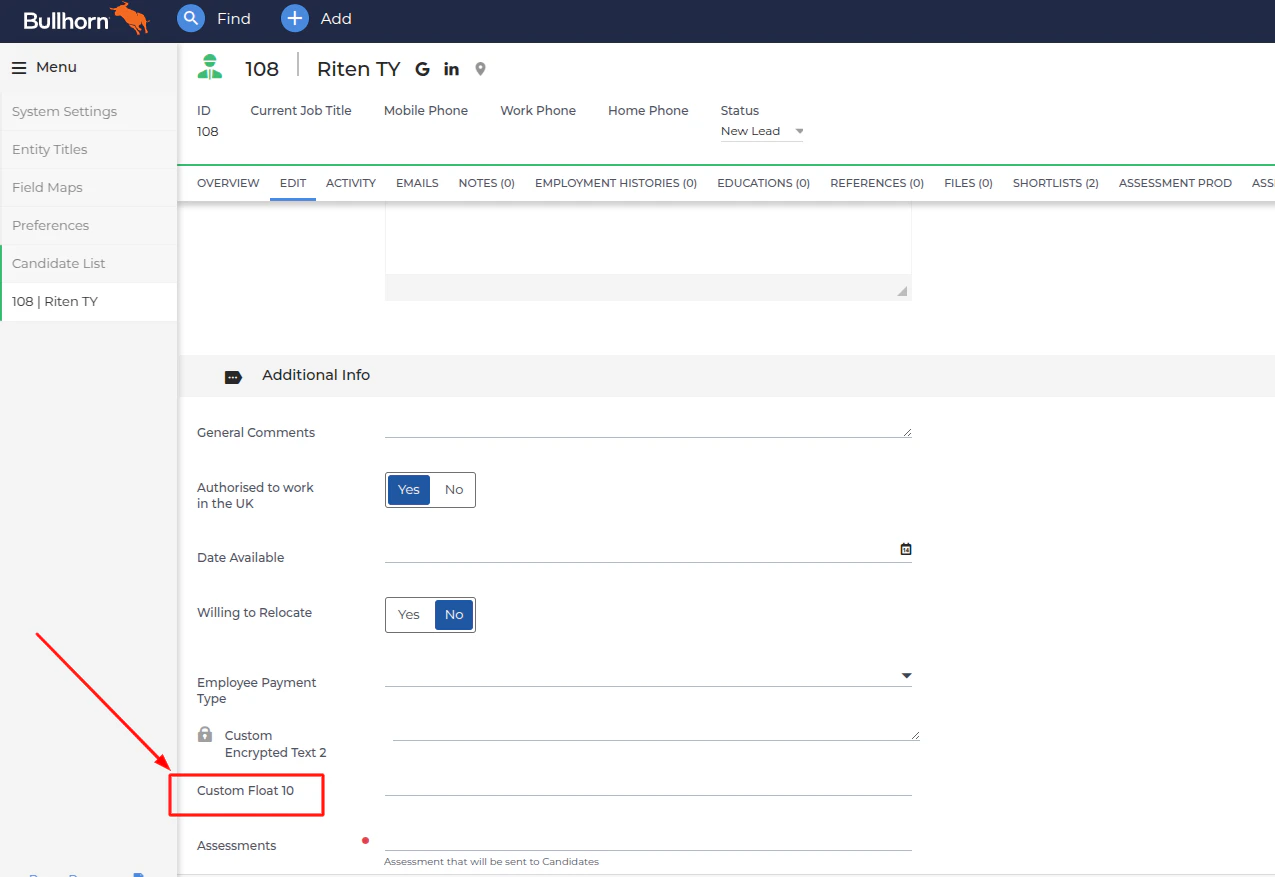
  <Step title="View and Edit Custom Field">
    The custom field will be displayed in the candidate profile edit section, where you can view and modify its value.
    <Frame>
      <img className="rounded-md" style={{ margin: '0 auto', border: '1px solid #efefef' }} alt="Custom field" src="https://mintcdn.com/stackone-hub-mintlify-faq-auth-1778741451/UhVL1I4kt2elcl0R/images/bullhorn/custom-field/custom-field-09.png?fit=max&auto=format&n=UhVL1I4kt2elcl0R&q=85&s=edda1ad15f3db3cc1cf2edb4734bc1a0" width="1275" height="877" data-path="images/bullhorn/custom-field/custom-field-09.png" />
    </Frame>
  </Step>
</Steps>

## Useful Links

<Card title="API Reference" icon="link" href="https://kb.bullhorn.com/ats/Content/BHATS/Topics/creatingCustomField.htm?Highlight=custom%20fields">
  [https://kb.bullhorn.com/ats/Content/BHATS/Topics/creatingCustomField.htm?Highlight=custom%20fields](https://kb.bullhorn.com/ats/Content/BHATS/Topics/creatingCustomField.htm?Highlight=custom%20fields)
</Card>