> ## Documentation Index
> Fetch the complete documentation index at: https://stackone-hub-mintlify-faq-auth-1778741451.mintlify.site/llms.txt
> Use this file to discover all available pages before exploring further.

# Ashby Background Check

> To successfully send test notifications from Ashby, follow these steps in your Ashby account, and complete the necessary actions.

<Warning>
  The following guidance assumes you have Admin privileges for your Ashby
  account.
</Warning>

## To Get External Trigger Token

<Steps>
  <Step title="To get the External Trigger Token">
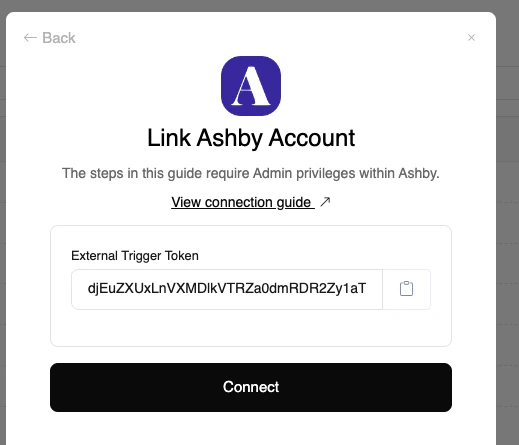
    From the StackOne hub, you will receive the `External Trigger Token` needed to enable the Ashby Integration.
    <Frame>
      <img className="rounded-md" style={{ margin: '0 auto', border: '1px solid #efefef' }} alt="Maintain Assessment Status" src="https://mintcdn.com/stackone-hub-mintlify-faq-auth-1778741451/5LCX_lbo-pexELHo/images/ashby-background-check/ashby-external-key.png?fit=max&auto=format&n=5LCX_lbo-pexELHo&q=85&s=a33ca4d3e94db8041a88d1a1c6129c4a" width="519" height="445" data-path="images/ashby-background-check/ashby-external-key.png" />
    </Frame>
  </Step>
</Steps>

## To enable the integration on your Ashby account

<Steps>
  <Step title="Go to Integration">
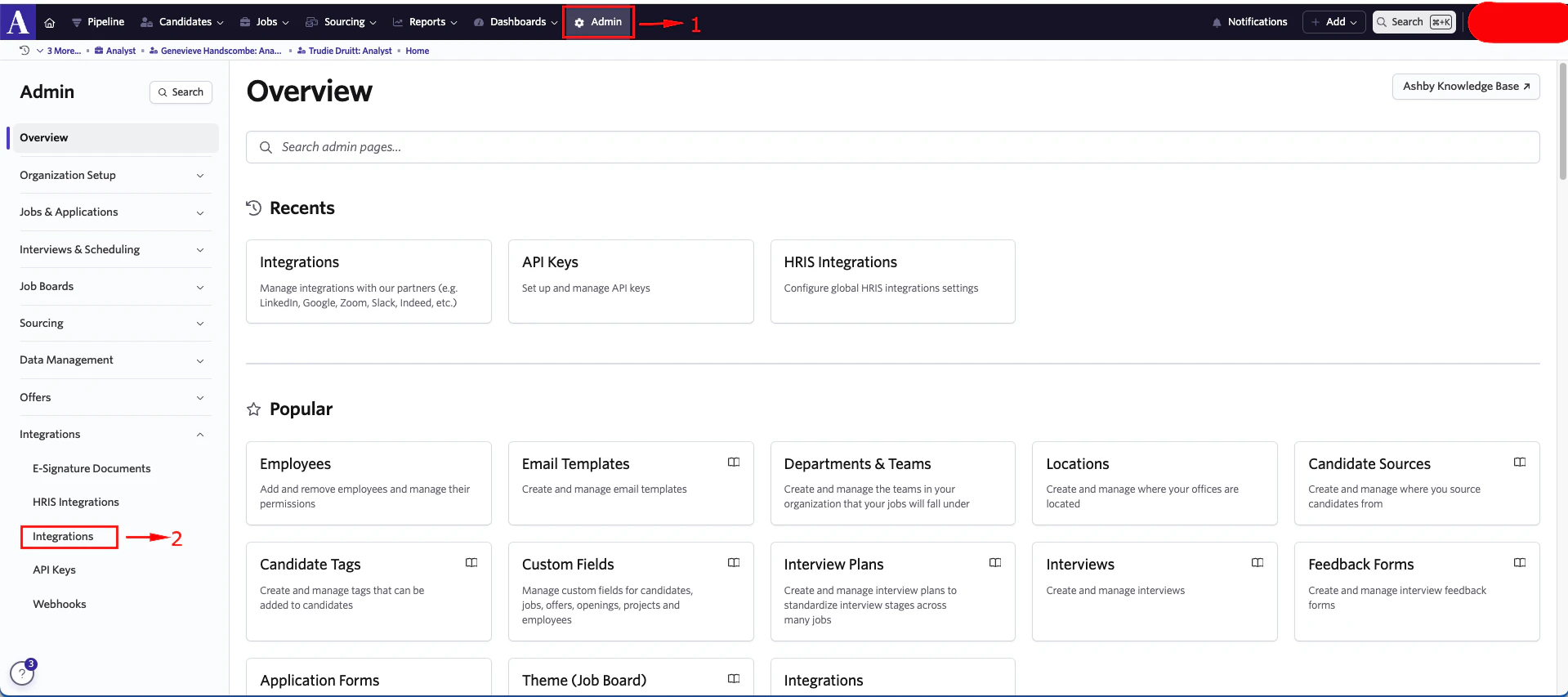
    Please navigate to `Admin` in Ashby’s dashboard. Then navigate to `Integrations` and click on it
    <Frame>
      <img className="rounded-md" style={{ margin: '0 auto', border: '1px solid #efefef' }} alt="Maintain Assessment Status" src="https://mintcdn.com/stackone-hub-mintlify-faq-auth-1778741451/5LCX_lbo-pexELHo/images/ashby-background-check/ashby-bcheck-1.png?fit=max&auto=format&n=5LCX_lbo-pexELHo&q=85&s=18b06909e1eb80d75fc8c5d59a34728d" width="1919" height="853" data-path="images/ashby-background-check/ashby-bcheck-1.png" />
    </Frame>
  </Step>

  <Step title="To enable the Stackone integration">
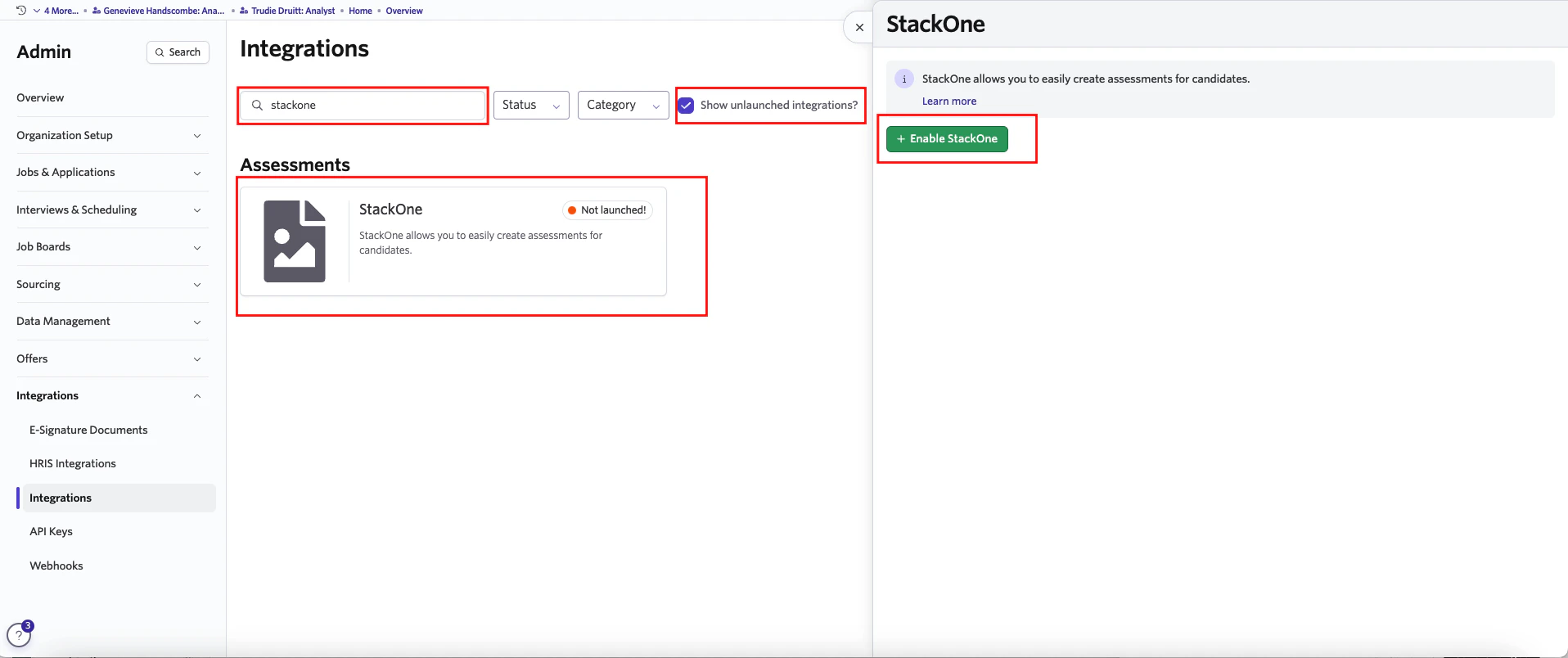
    Check the Show unlaunched integrations flag, search for `Stackone` Integration and click on the integration as shown below. A pop up for enabling the `Stackone` integration will appear. Click on Enable `Stackone` integrations.
    <Frame>
      <img className="rounded-md" style={{ margin: '0 auto', border: '1px solid #efefef' }} alt="Edit/View Assessment/Background check Status ID" src="https://mintcdn.com/stackone-hub-mintlify-faq-auth-1778741451/5LCX_lbo-pexELHo/images/ashby-background-check/ashby-bcheck-2.png?fit=max&auto=format&n=5LCX_lbo-pexELHo&q=85&s=2347bee991da498d0c0b04997f6c704f" width="1916" height="804" data-path="images/ashby-background-check/ashby-bcheck-2.png" />
    </Frame>

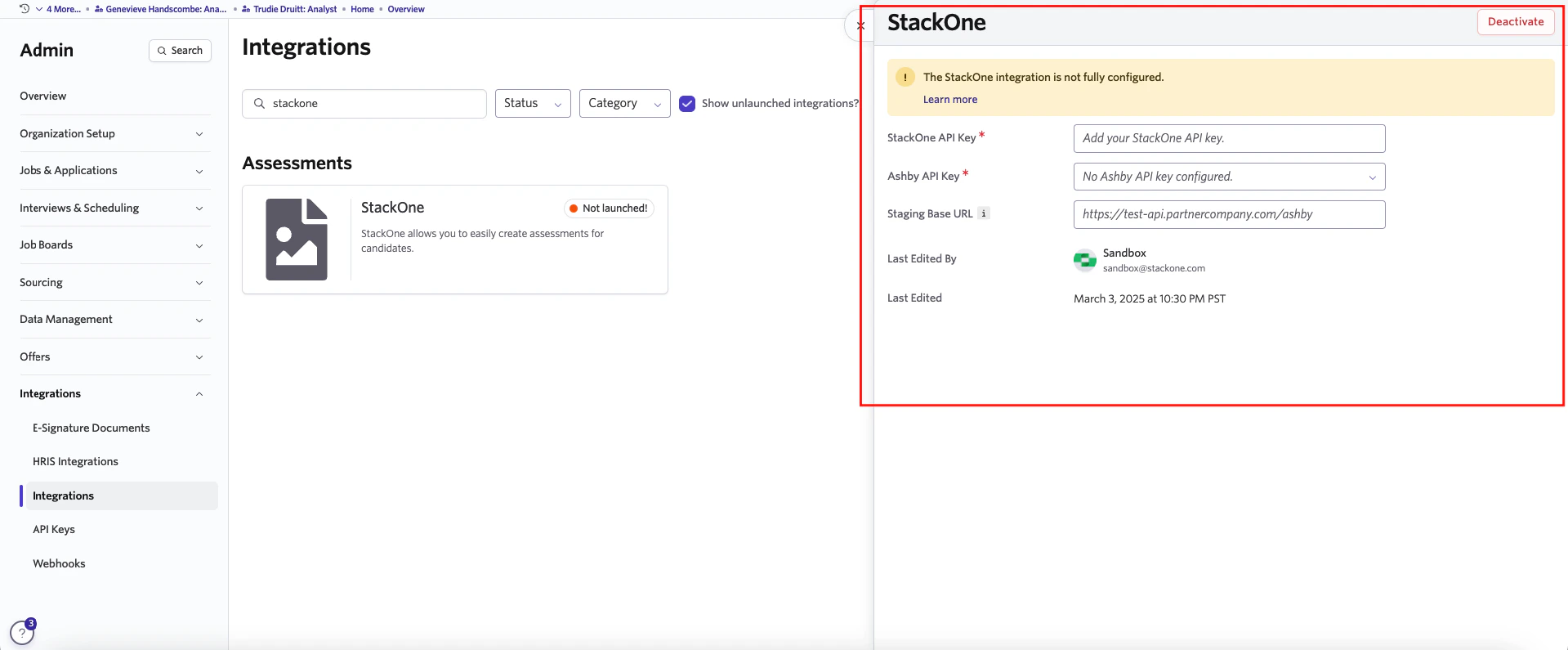
    Once you enable the integration, a pop-up will appear, prompting you to fill in the required fields shown below.
    <Frame>
      <img className="rounded-md" style={{ margin: '0 auto', border: '1px solid #efefef' }} alt="Edit/View Assessment/Background check Status ID" src="https://mintcdn.com/stackone-hub-mintlify-faq-auth-1778741451/5LCX_lbo-pexELHo/images/ashby-background-check/ashby-bcheck-3.png?fit=max&auto=format&n=5LCX_lbo-pexELHo&q=85&s=c0830d4226a4a5a7c117c2c2c5a191a7" width="1919" height="795" data-path="images/ashby-background-check/ashby-bcheck-3.png" />
    </Frame>

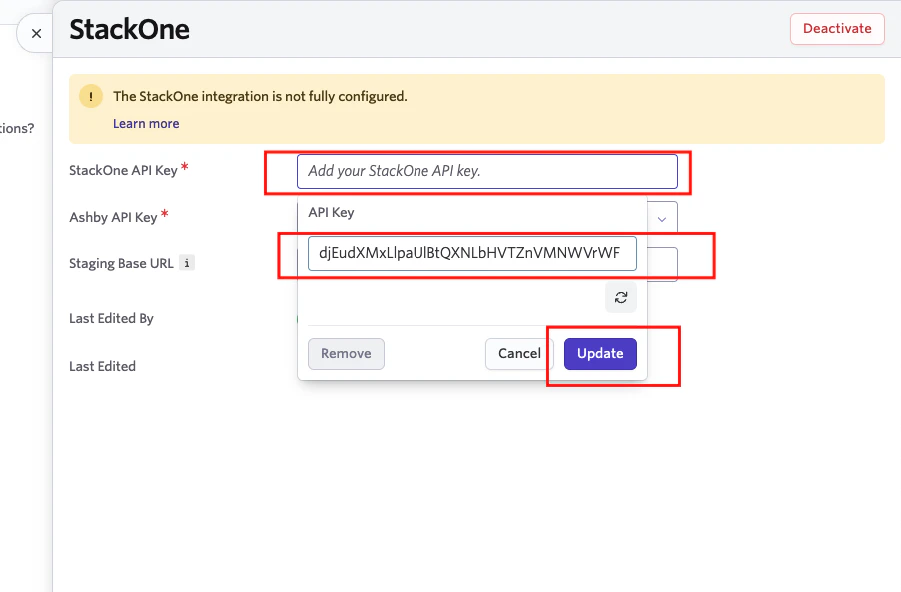
    Please click on `StackOne API Key`. An input field will appear, allowing you to enter the `External Trigger Token` provided by the StackOne Hub. After entering the `External Trigger Token`, click Update.
    <Frame>
      <img className="rounded-md" style={{ margin: '0 auto', border: '1px solid #efefef' }} alt="Edit/View Assessment/Background check Status ID" src="https://mintcdn.com/stackone-hub-mintlify-faq-auth-1778741451/5LCX_lbo-pexELHo/images/ashby-background-check/ashby-bcheck-4.png?fit=max&auto=format&n=5LCX_lbo-pexELHo&q=85&s=a1beeb9ebc8648113039f6c66e56d0fb" width="901" height="592" data-path="images/ashby-background-check/ashby-bcheck-4.png" />
    </Frame>

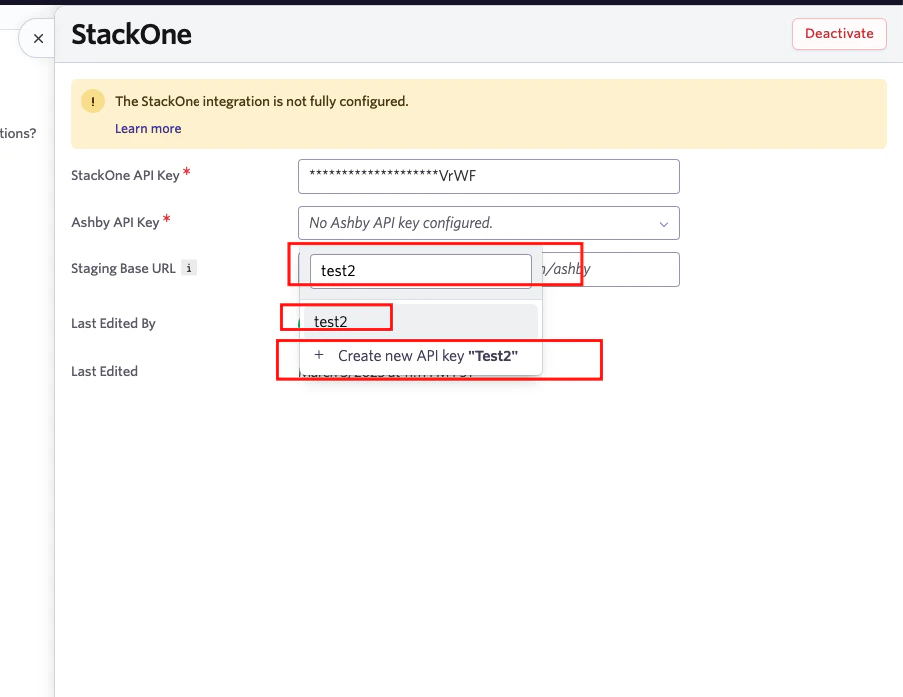
    Please click on `Ashby API Key`. A search bar will appear, allowing you to enter the name of an existing Ashby API Key. If you want to use an existing one, select it; otherwise, click Create New API Key.
    <Frame>
      <img className="rounded-md" style={{ margin: '0 auto', border: '1px solid #efefef' }} alt="Edit/View Assessment/Background check Status ID" src="https://mintcdn.com/stackone-hub-mintlify-faq-auth-1778741451/5LCX_lbo-pexELHo/images/ashby-background-check/ashby-bcheck-5.png?fit=max&auto=format&n=5LCX_lbo-pexELHo&q=85&s=5d3b3886ee88b2a0302a1c1218f0789a" width="903" height="697" data-path="images/ashby-background-check/ashby-bcheck-5.png" />
    </Frame>

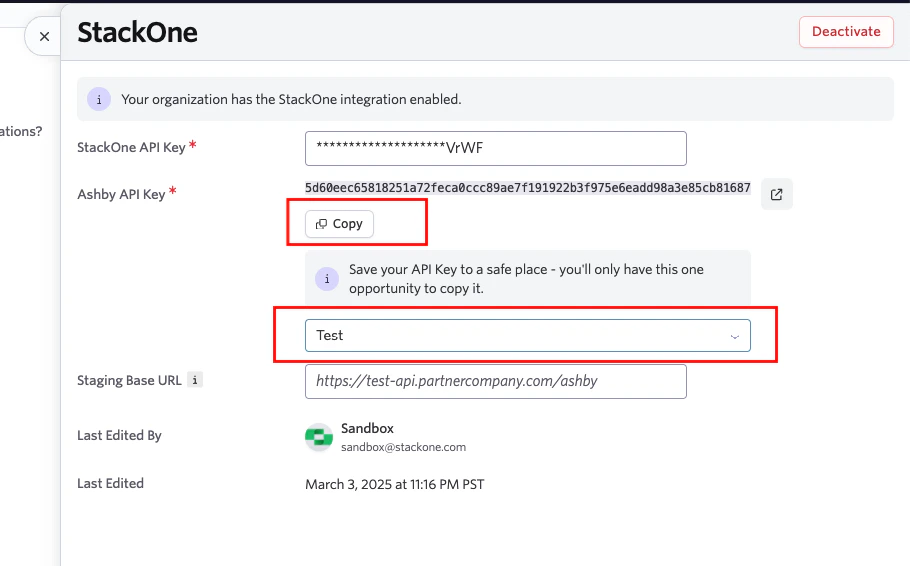
    Ashby API Key will be generated and displayed. Please copy your Ashby API Key as this is shown only once
    <Frame>
      <img className="rounded-md" style={{ margin: '0 auto', border: '1px solid #efefef' }} alt="Edit/View Assessment/Background check Status ID" src="https://mintcdn.com/stackone-hub-mintlify-faq-auth-1778741451/5LCX_lbo-pexELHo/images/ashby-background-check/ashby-bcheck-6.png?fit=max&auto=format&n=5LCX_lbo-pexELHo&q=85&s=61d7b9b2b99786a5f2c02c3ba3ffbd7e" width="910" height="566" data-path="images/ashby-background-check/ashby-bcheck-6.png" />
    </Frame>
  </Step>
</Steps>

## Adding Background check to Candidate Pipeline.
<Steps>
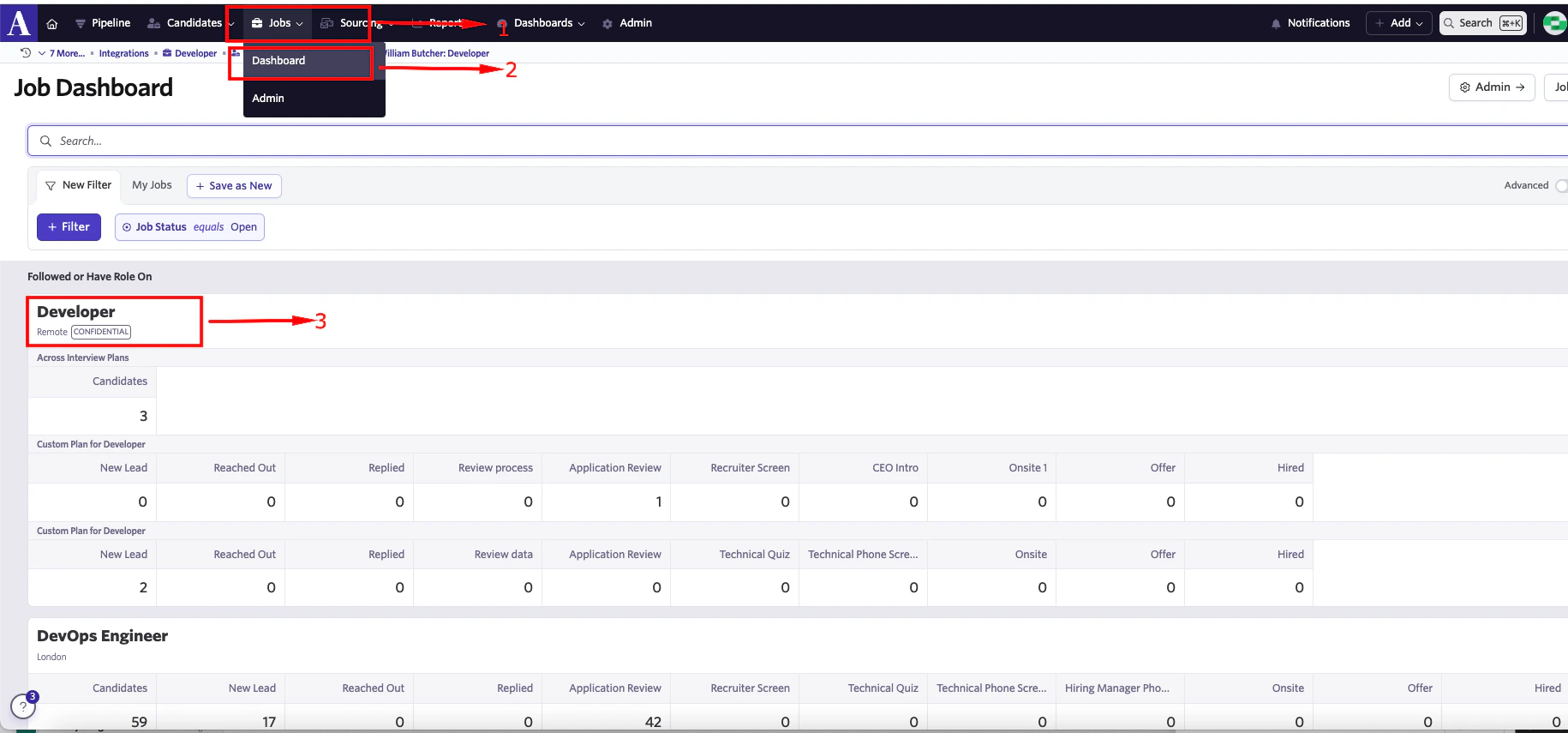
  <Step title="Navigate to your job dashboard and select a job from the job list">
    <Frame>
      <img className="rounded-md" style={{ margin: '0 auto', border: '1px solid #efefef' }} alt="Edit/View Assessment/Background check Status ID" src="https://mintcdn.com/stackone-hub-mintlify-faq-auth-1778741451/5LCX_lbo-pexELHo/images/ashby-background-check/ashby-bcheck-7.png?fit=max&auto=format&n=5LCX_lbo-pexELHo&q=85&s=6e015f993d5d103209db71898e68f92d" width="1830" height="855" data-path="images/ashby-background-check/ashby-bcheck-7.png" />
    </Frame>
  </Step>

  <Step title="Select a candidate from candidate pipeline stage">
    <Frame>
      <img className="rounded-md" style={{ margin: '0 auto', border: '1px solid #efefef' }} alt="Edit/View Assessment/Background check Status ID" src="https://mintcdn.com/stackone-hub-mintlify-faq-auth-1778741451/5LCX_lbo-pexELHo/images/ashby-background-check/ashby-bcheck-8.png?fit=max&auto=format&n=5LCX_lbo-pexELHo&q=85&s=a58fb157c40562d017a6054ea4318694" width="1918" height="798" data-path="images/ashby-background-check/ashby-bcheck-8.png" />
    </Frame>
  </Step>

  <Step title="To select the background check tests">
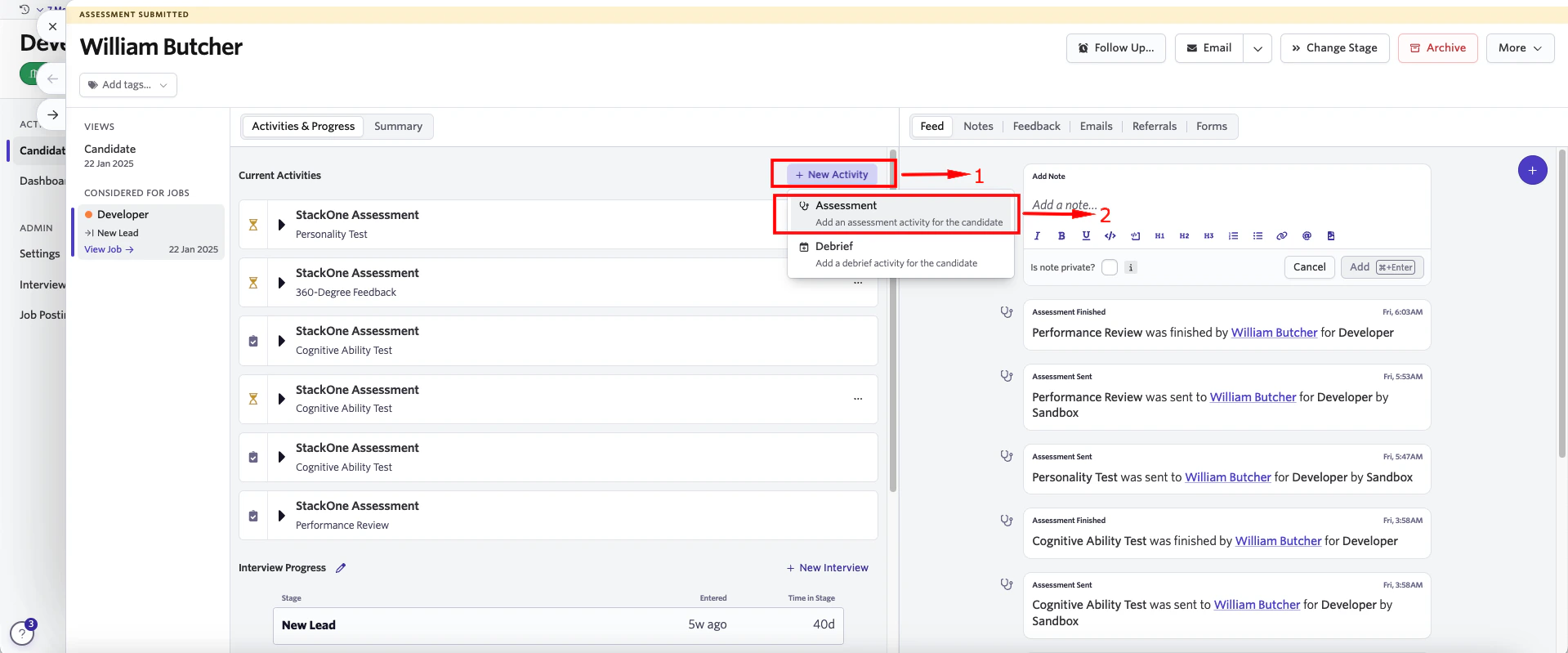
    Click on `New Activity` to add an background check at this stage. Click on `Assessment` that appears after `New Activity` is clicked.
    <Frame>
      <img className="rounded-md" style={{ margin: '0 auto', border: '1px solid #efefef' }} alt="Edit/View Assessment/Background check Status ID" src="https://mintcdn.com/stackone-hub-mintlify-faq-auth-1778741451/5LCX_lbo-pexELHo/images/ashby-background-check/ashby-bcheck-9.png?fit=max&auto=format&n=5LCX_lbo-pexELHo&q=85&s=ed3283fa73b5486f57c187fc39874819" width="1919" height="799" data-path="images/ashby-background-check/ashby-bcheck-9.png" />
    </Frame>

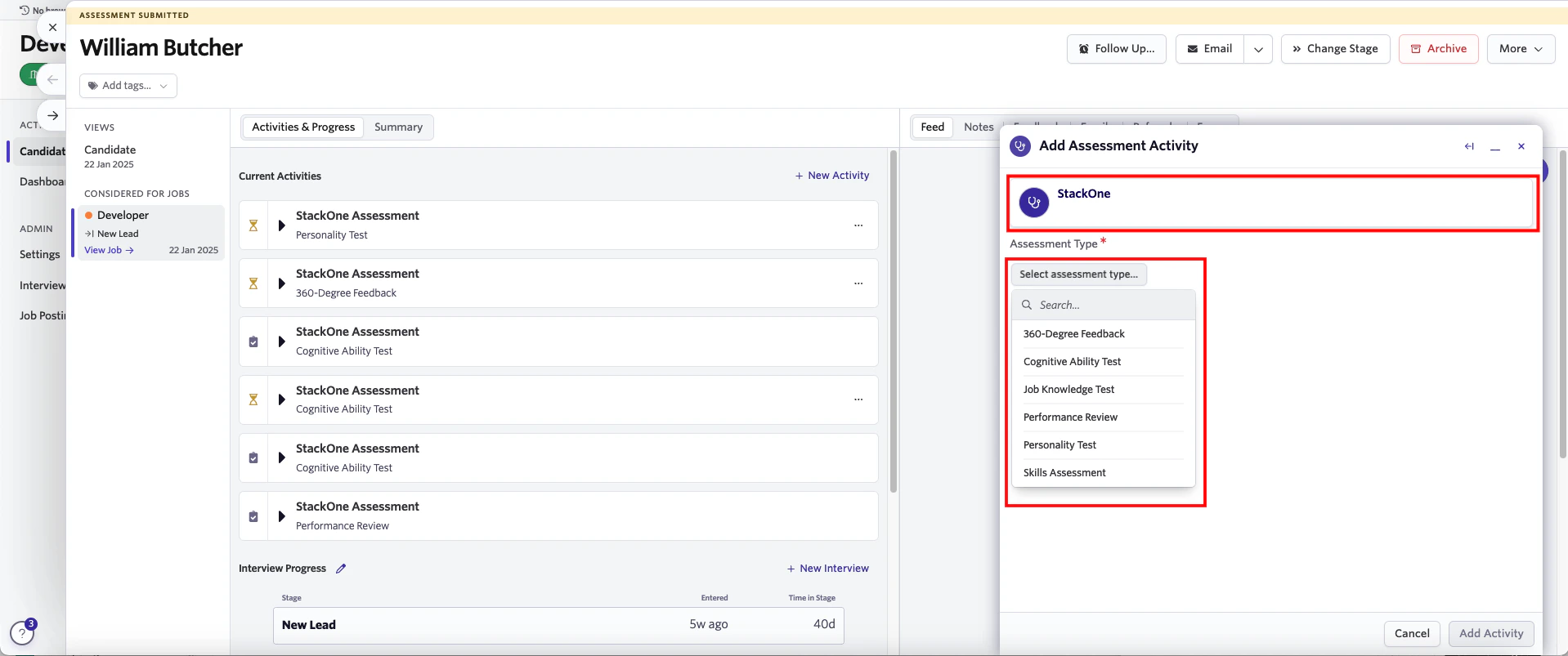
    You will be redirected to `Add Assessment Activity` pop up. Please click on the `Stackone` assessment in Add Assessment Activity. Select the `Assessment Type` from the dropdown list.
    <Frame>
      <img className="rounded-md" style={{ margin: '0 auto', border: '1px solid #efefef' }} alt="Edit/View Assessment/Background check Status ID" src="https://mintcdn.com/stackone-hub-mintlify-faq-auth-1778741451/5LCX_lbo-pexELHo/images/ashby-background-check/ashby-bcheck-10.png?fit=max&auto=format&n=5LCX_lbo-pexELHo&q=85&s=38d2c967a5d7d4a1db92a666d765dd00" width="1918" height="803" data-path="images/ashby-background-check/ashby-bcheck-10.png" />
    </Frame>

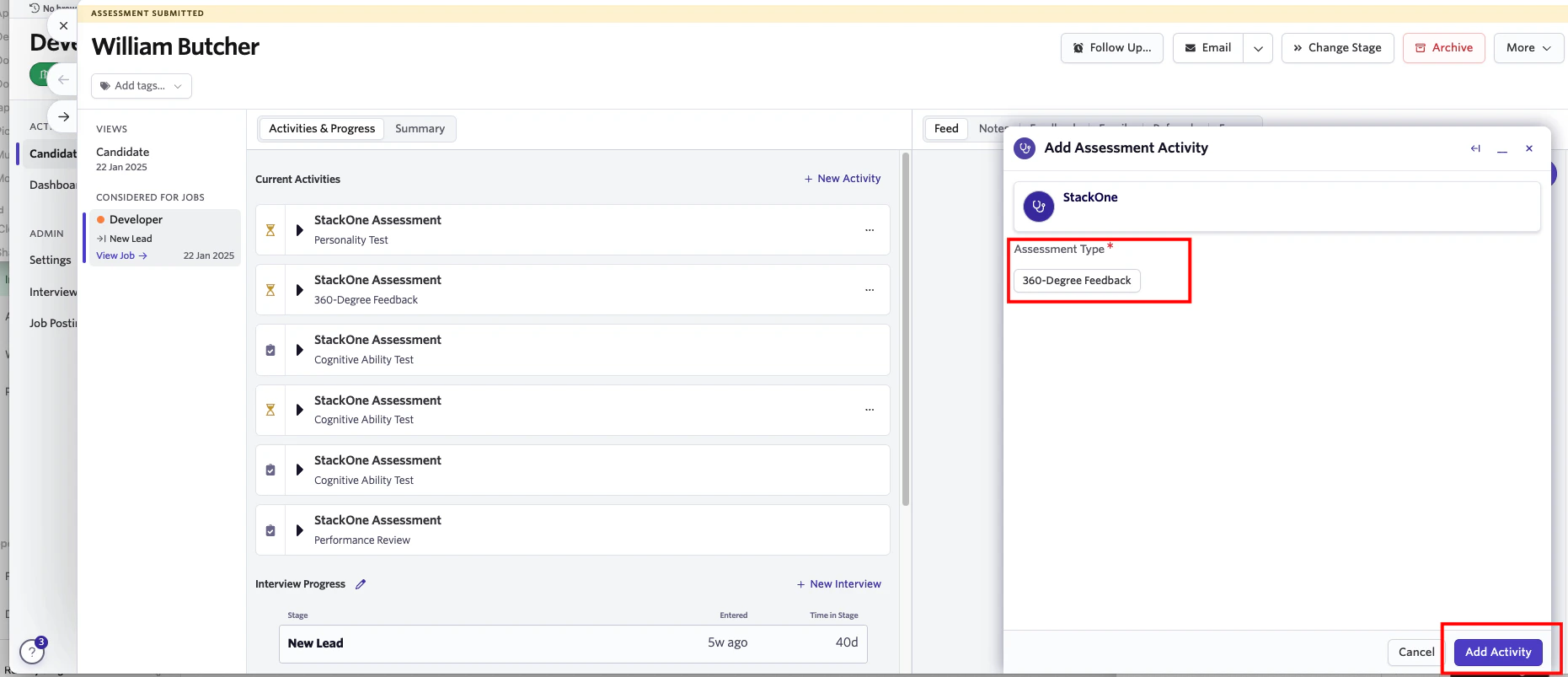
    Once selected, click on the `Add Activity` button at the bottom right corner of the` Add Assessment Activity`.
    <Frame>
      <img className="rounded-md" style={{ margin: '0 auto', border: '1px solid #efefef' }} alt="Edit/View Assessment/Background check Status ID" src="https://mintcdn.com/stackone-hub-mintlify-faq-auth-1778741451/5LCX_lbo-pexELHo/images/ashby-background-check/ashby-bcheck-11.png?fit=max&auto=format&n=5LCX_lbo-pexELHo&q=85&s=166af8cfc42a9df8f03c85baa4f02c6a" width="1861" height="803" data-path="images/ashby-background-check/ashby-bcheck-11.png" />
    </Frame>

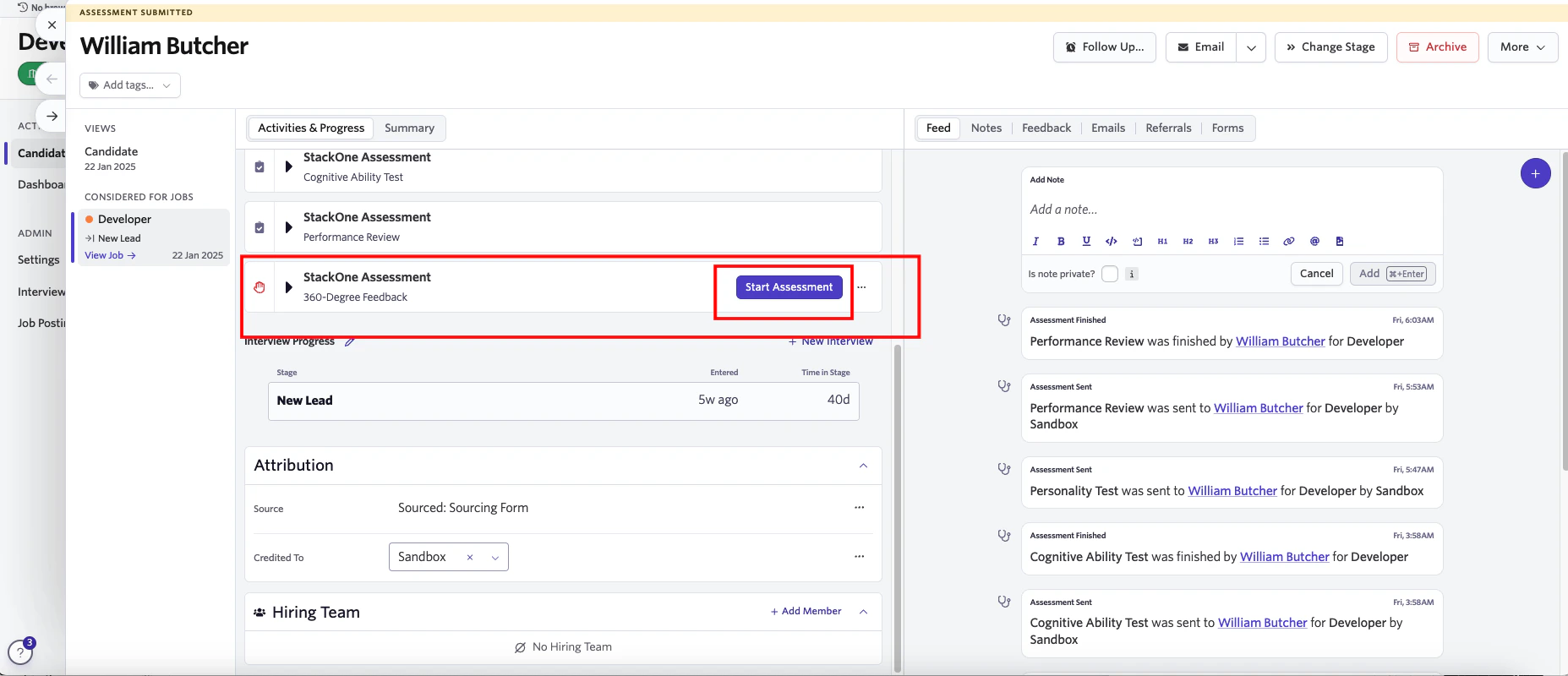
    You will now see that the background check has been added to the candidate profile with a `Start Assessment` button in the `Activity` section.
    <Frame>
      <img className="rounded-md" style={{ margin: '0 auto', border: '1px solid #efefef' }} alt="Edit/View Assessment/Background check Status ID" src="https://mintcdn.com/stackone-hub-mintlify-faq-auth-1778741451/5LCX_lbo-pexELHo/images/ashby-background-check/ashby-bcheck-12.png?fit=max&auto=format&n=5LCX_lbo-pexELHo&q=85&s=9eb82c8ce2ba1df5af5c9c14628e22c6" width="1855" height="800" data-path="images/ashby-background-check/ashby-bcheck-12.png" />
    </Frame>
  </Step>
</Steps>

## Sending StackOne background check test to a Candidate

<Steps>
  <Step title="To send an background check test to the candidate">
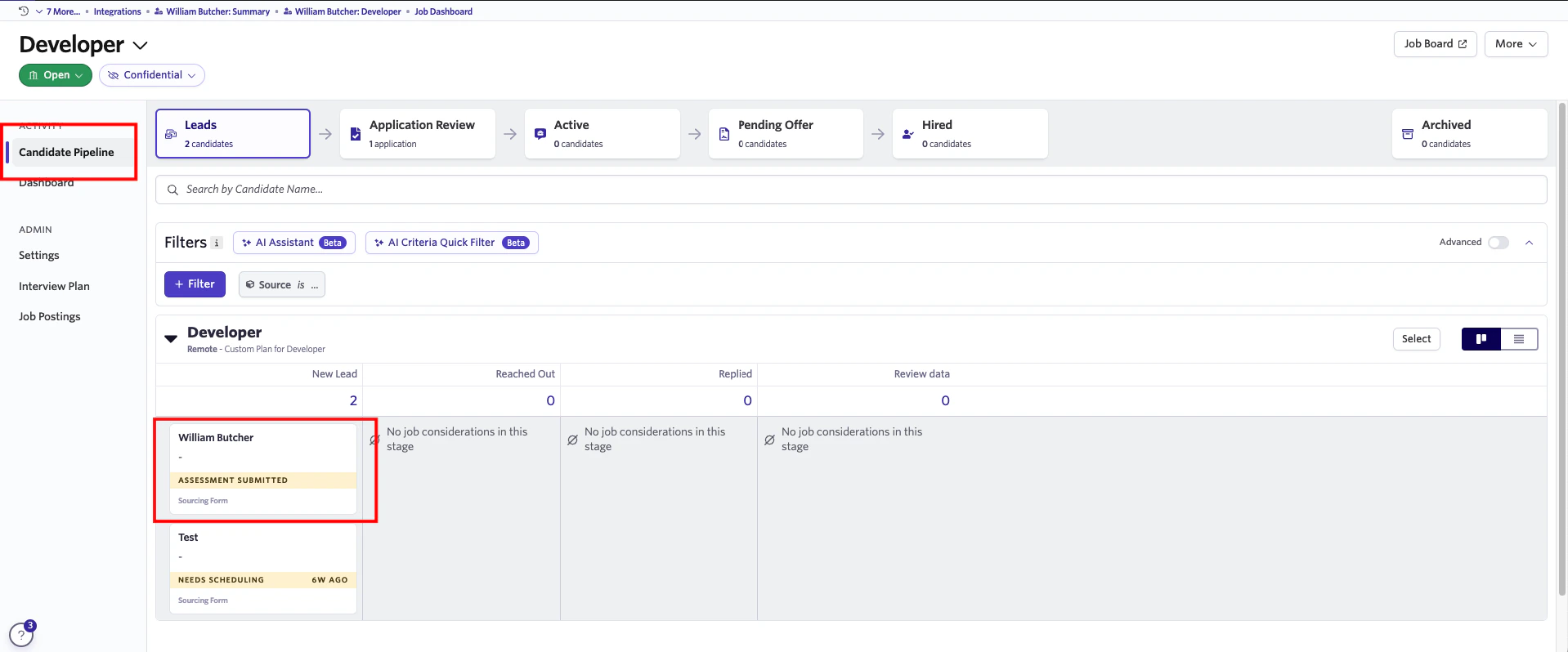
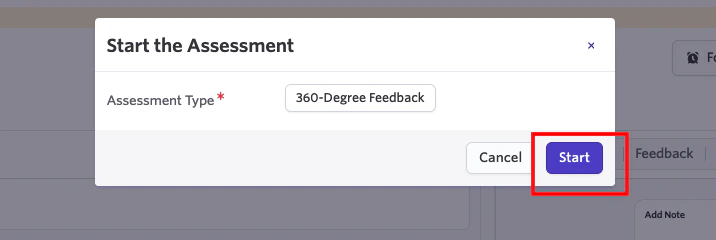
    Click the `Start Assessment` button in the Activity section of the selected candidate. A confirmation pop-up will appear, displaying the selected background check type. You can also modify the background check type using the dropdown list. Click `Start` to send the test.
    <Frame>
      <img className="rounded-md" style={{ margin: '0 auto', border: '1px solid #efefef' }} alt="Edit/View Assessment/Background check Status ID" src="https://mintcdn.com/stackone-hub-mintlify-faq-auth-1778741451/5LCX_lbo-pexELHo/images/ashby-background-check/ashby-bcheck-13.png?fit=max&auto=format&n=5LCX_lbo-pexELHo&q=85&s=51f5852d197792defe8d9ca8a2265d63" width="716" height="240" data-path="images/ashby-background-check/ashby-bcheck-13.png" />
    </Frame>

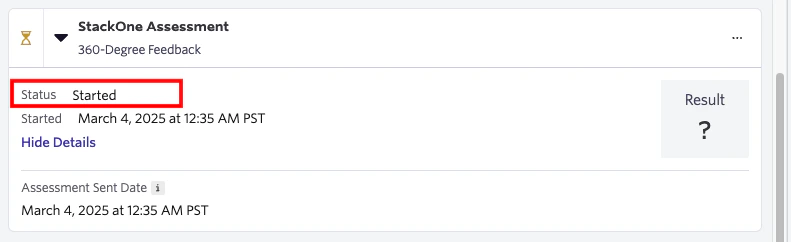
    The screen displays the background check status along with the date and time it was sent. Since the candidate has not yet completed the assessment, the result will remain pending.
    <Frame>
      <img className="rounded-md" style={{ margin: '0 auto', border: '1px solid #efefef' }} alt="Edit/View Assessment/Background check Status ID" src="https://mintcdn.com/stackone-hub-mintlify-faq-auth-1778741451/5LCX_lbo-pexELHo/images/ashby-background-check/ashby-bcheck-14.png?fit=max&auto=format&n=5LCX_lbo-pexELHo&q=85&s=cb14420574d4437648bf64a608cc041f" width="791" height="242" data-path="images/ashby-background-check/ashby-bcheck-14.png" />
    </Frame>
  </Step>
</Steps>

## View Candidate’s Result in Ashby

<Steps>
  <Step title="To get the result details">
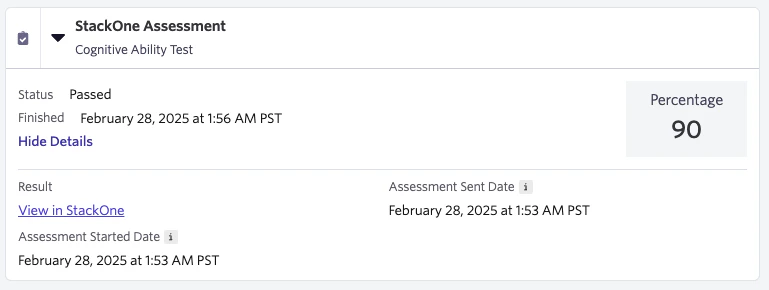
    A detailed result, along with a `Full Report link`, will appear once the candidate has completed the assessment
    <Frame>
      <img className="rounded-md" style={{ margin: '0 auto', border: '1px solid #efefef' }} alt="Edit/View Assessment/Background check Status ID" src="https://mintcdn.com/stackone-hub-mintlify-faq-auth-1778741451/5LCX_lbo-pexELHo/images/ashby-background-check/ashby-bcheck-15.png?fit=max&auto=format&n=5LCX_lbo-pexELHo&q=85&s=69b0c93e47002c8019d93579a952ea84" width="769" height="290" data-path="images/ashby-background-check/ashby-bcheck-15.png" />
    </Frame>
  </Step>
</Steps>

## Useful Links

<Card title="API Reference" icon="link" href="https://developers.ashbyhq.com/reference/assessmentstart">
  [https://developers.ashbyhq.com/reference/assessmentstart](https://developers.ashbyhq.com/reference/assessmentstart)
</Card>