> ## Documentation Index
> Fetch the complete documentation index at: https://stackone-hub-mintlify-faq-auth-1778741451.mintlify.site/llms.txt
> Use this file to discover all available pages before exploring further.

# Factorial HR - OAuth Authentication

> Follow these steps to connect Factorial HR with StackOne Hub successfully.

<Warning>
  Ensure you have Admin privileges for your Factorial HR account.
</Warning>

If you've been directed to StackOne to integrate with Factorial HR, the following steps will help you understand the process and any necessary actions to configure successful integration.

## Connecting with StackOne

<Steps>
  <Step title="Proceed to the Accounts page">
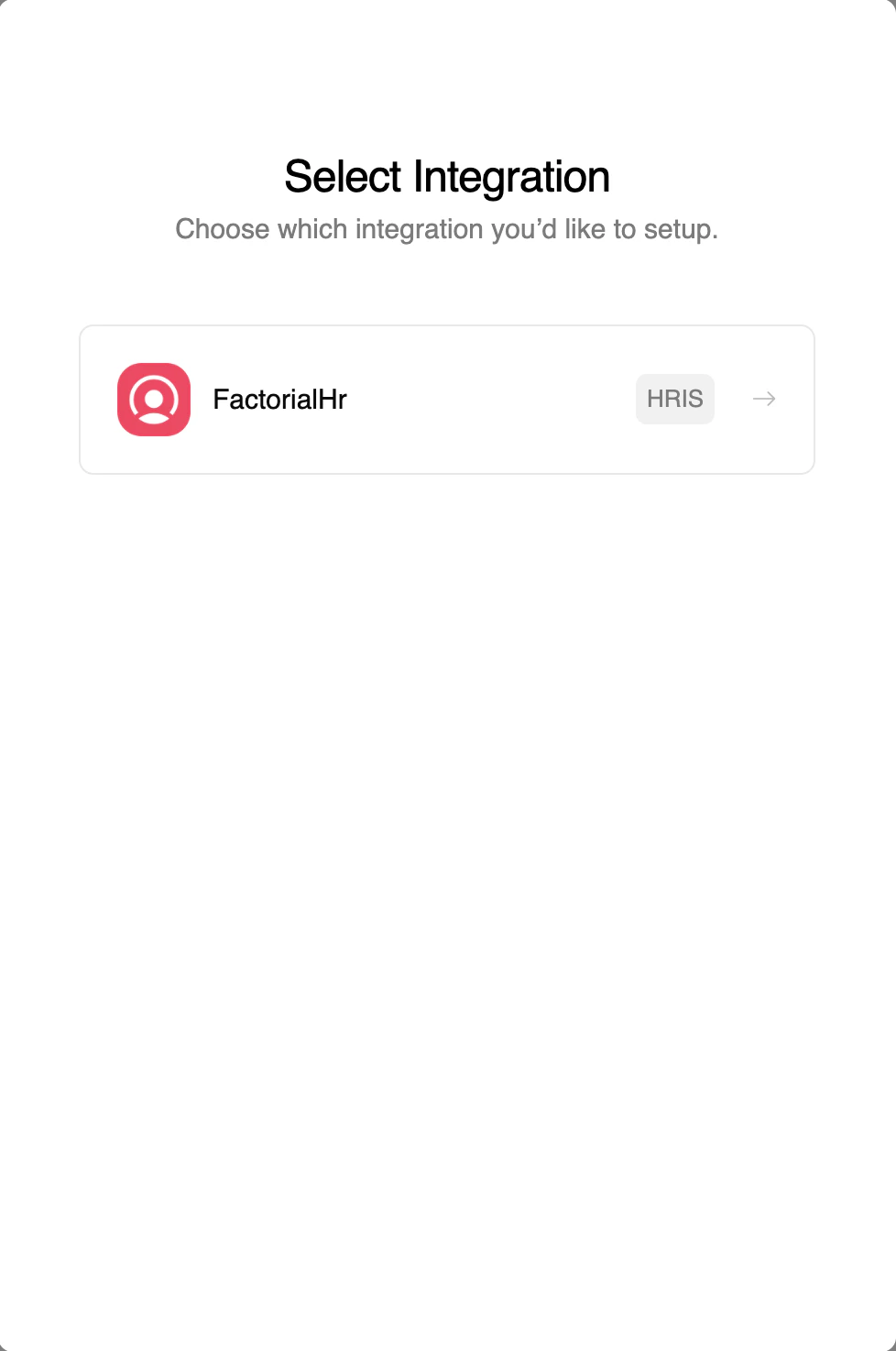
    Proceed to the Accounts page to establish a connection between FactorialHr and StackOne. Then click the `Connect` button.
    <Frame>
      <img className="rounded-md" style={{ margin: '0 auto', border: '1px solid #efefef' }} alt="Connect Button" src="https://mintcdn.com/stackone-hub-mintlify-faq-auth-1778741451/lqPNWuA6uOPVNoJc/images/factorialhr/image1.png?fit=max&auto=format&n=lqPNWuA6uOPVNoJc&q=85&s=62f8693922b7ec0434c2fda82d62cbff" width="978" height="1474" data-path="images/factorialhr/image1.png" />
    </Frame>
  </Step>

  <Step title="Enter your Factorial HR account credentials">
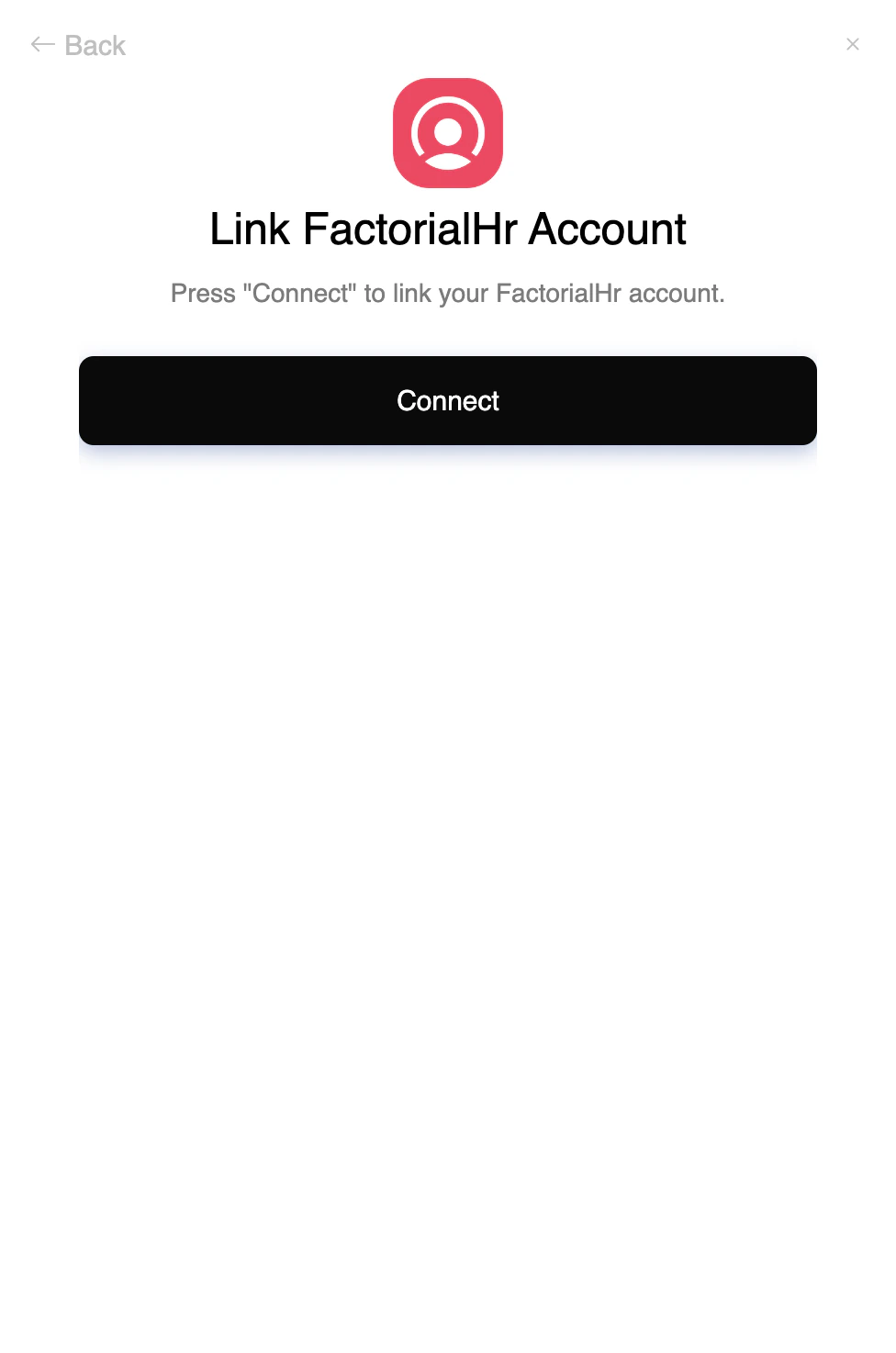
    Enter your Factorial HR account credentials in the opened tab.
    <Frame>
      <img className="rounded-md" style={{ margin: '0 auto', border: '1px solid #efefef' }} alt="Factorial HR Account Credentials" src="https://mintcdn.com/stackone-hub-mintlify-faq-auth-1778741451/lqPNWuA6uOPVNoJc/images/factorialhr/image2.png?fit=max&auto=format&n=lqPNWuA6uOPVNoJc&q=85&s=d1e6027166b2c2f6f2e3cc2e8d3a3c48" width="976" height="1474" data-path="images/factorialhr/image2.png" />
    </Frame>
  </Step>

  <Step title="Click Sign In">
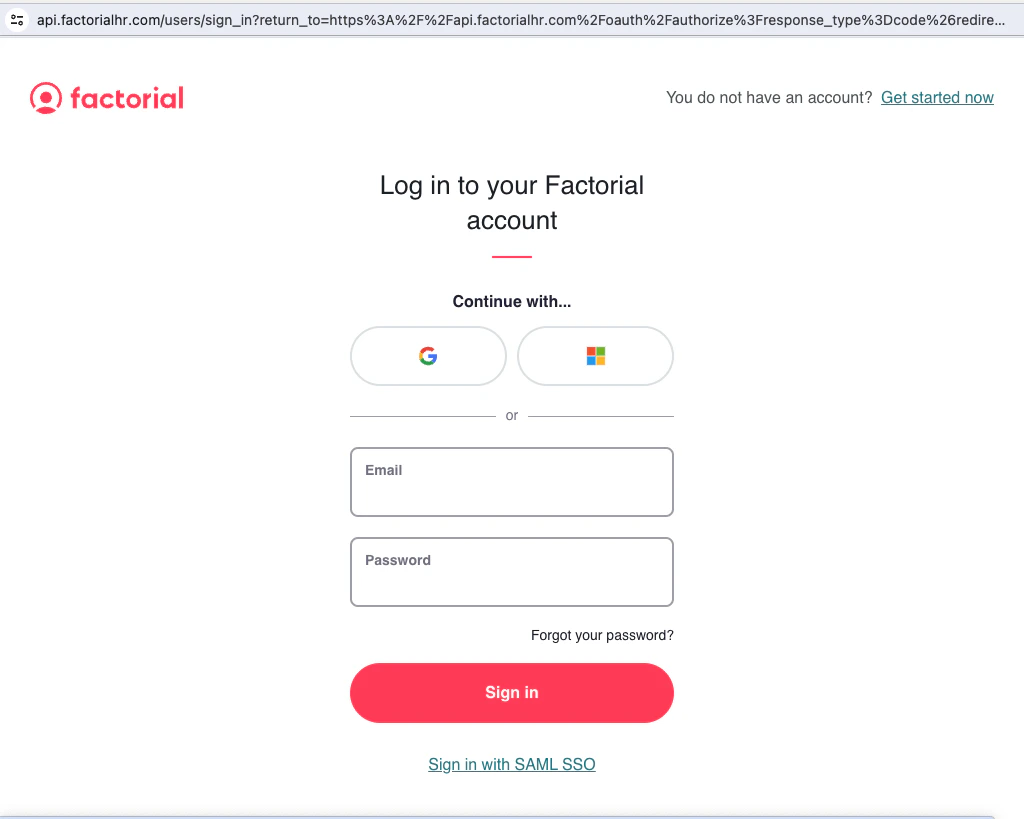
    Click sign in.

    <Frame>
      <img className="rounded-md" style={{ margin: '0 auto', border: '1px solid #efefef' }} alt="Click Sign In" src="https://mintcdn.com/stackone-hub-mintlify-faq-auth-1778741451/lqPNWuA6uOPVNoJc/images/factorialhr/image3.png?fit=max&auto=format&n=lqPNWuA6uOPVNoJc&q=85&s=411dfcdc3816f1d23029e239b27862ba" width="1024" height="819" data-path="images/factorialhr/image3.png" />
    </Frame>
  </Step>
</Steps>

You'll get an instant "`Account connected`" success message and the opened tab will close.